CHAPTER 05
FISHVUE AI INTERGRATION
The Interpret desktop application is now a fully integrated component of the FishVue ecosystem. As part of this transition, Interpret introduces built-in connectivity with FishVue AI, our advanced artificial intelligence and computer-vision platform. This integration enhances Interpret’s capabilities by enabling automated analysis workflows and smarter data processing.
This section provides an overview of the key new features introduced in Interpret as a result of this integration, highlighting how they streamline operations and improve the overall user experience.
5.1 Configuring FishVue AI
Interpret provides several configuration options for its FishVue AI integration. To access these settings, go to Settings > FishVue AI.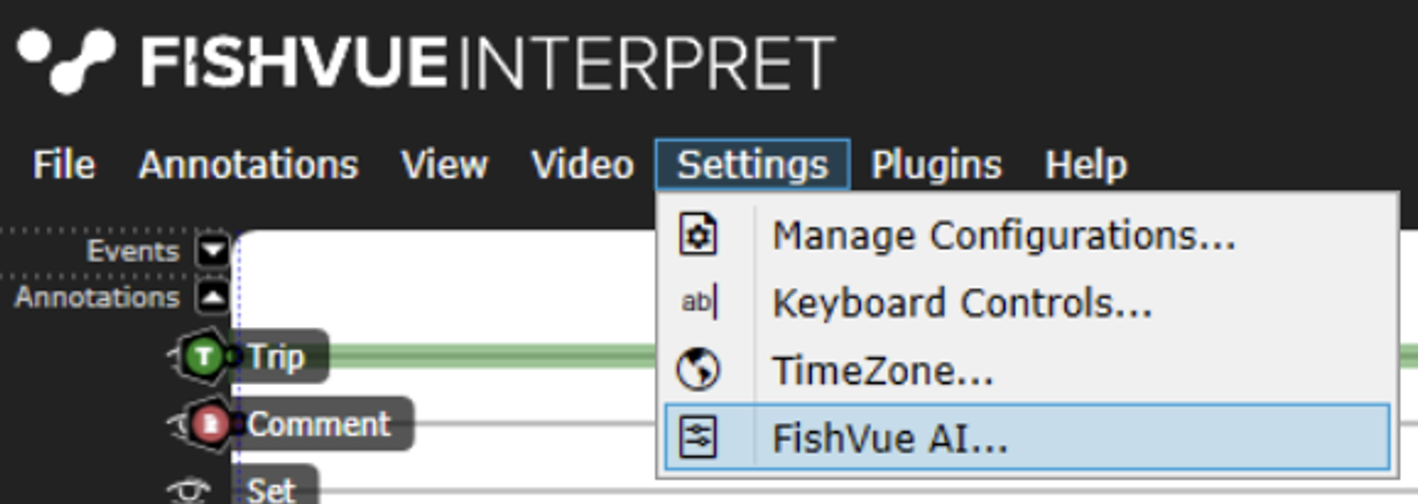
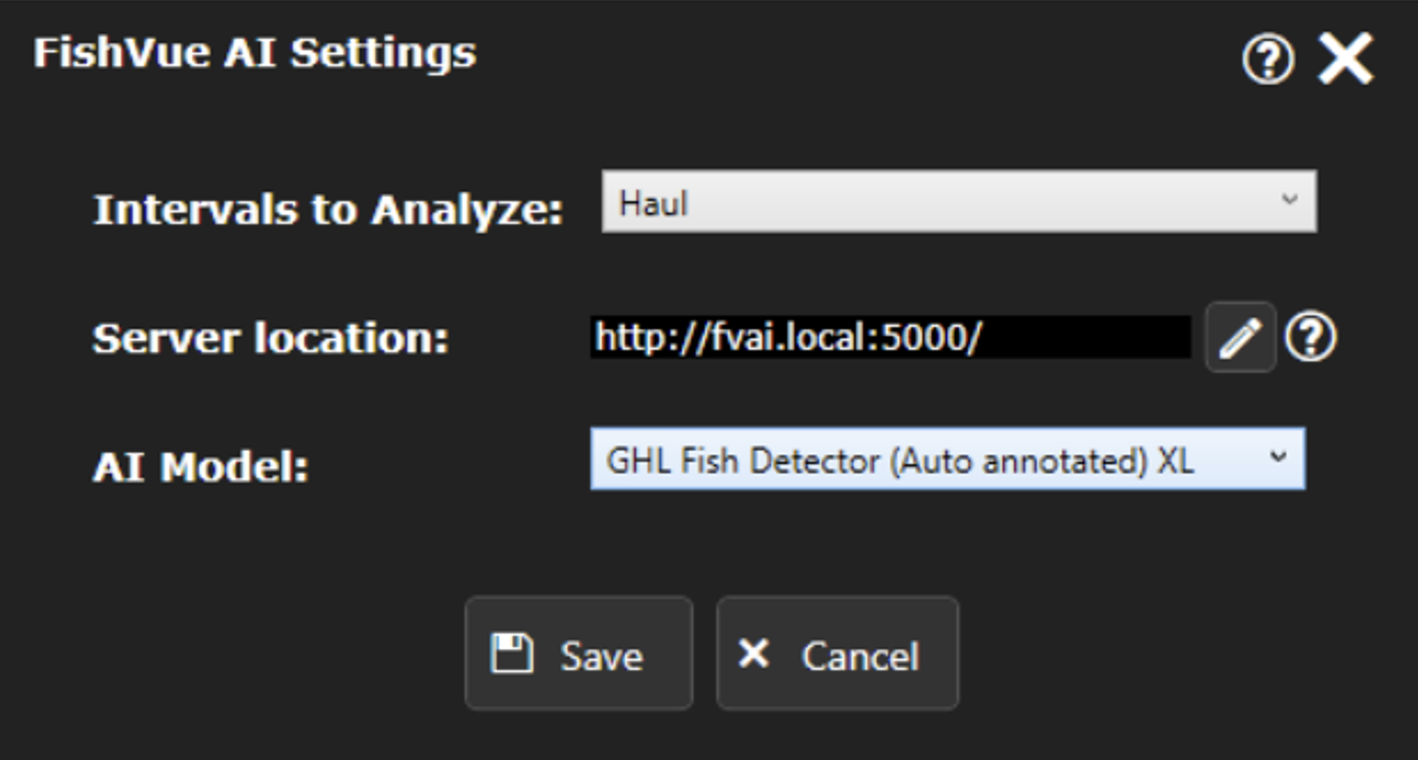
5.1.1 Setting Up Interval Annotation
To change the interval used for AI analysis, use the dropdown menu that displays all interval annotation types available in your current configuration. Select the interval you want the AI to analyze and then save your changes.
5.1.2 Setting Up Server End Point
Interpret includes an automatic discovery system that detects and configures any FishVue AI servers available within its network. In most environments this process is seamless; however, certain network setups—such as restricted subnets, firewalls, or custom routing—may prevent the automatic discovery from working correctly.
In these situations, Interpret allows you to manually specify the FishVue AI server address. A dedicated option in the Settings window lets you override the server URL, ensuring that the application can still connect to the correct AI service even when auto-discovery is not possible.
To enter a new server URL, click the Edit button next to the Server location field. The field will become editable, allowing you to update the existing address or replace it with a completely new one. Interpret will automatically validate the URL and will display an error message if the format is incorrect or the address is invalid.
Finally, click save to persist your changes.
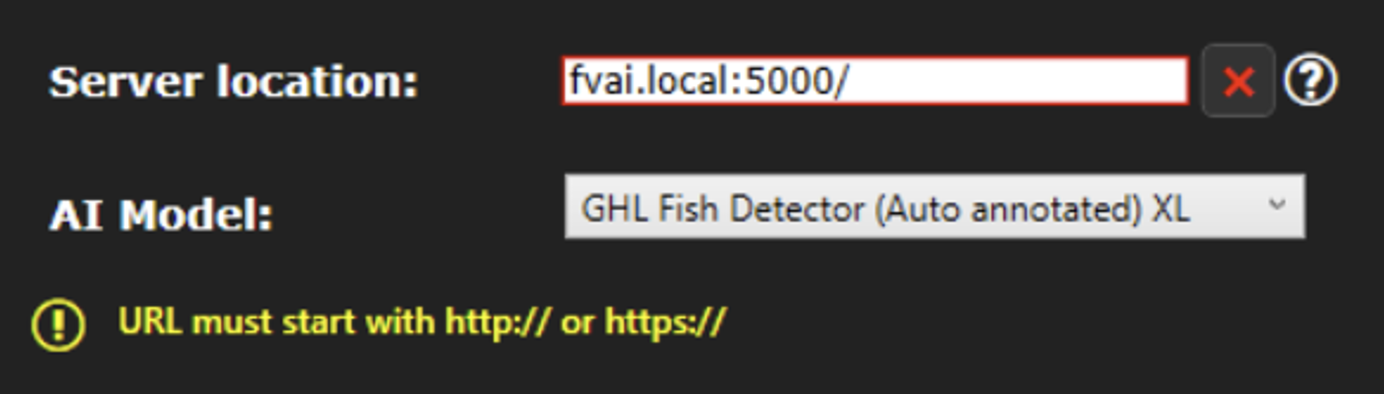
To restore Interpret to automatic server URL discovery, simply clear the Server URL field and save your changes.
5.2 Sending Video Files for Analysis
Interpret now allows you to send videos to FishVue AI for computer-vision analysis, helping to support and enhance your video review process. Once the analysis is complete, the results are displayed alongside the video during playback. Additional reports and enhanced video-player features are also available to make use of the AI-generated insights.
5.2.1 Selecting Video for Analysis
To determine which videos can be analyzed, Interpret relies on interval-type annotations together with the dataset’s video manifest.
The Send to FishVue AI feature becomes available only when the necessary annotations exist. Interpret selects the intervals to analyze based on the interval annotation type configured in the FishVue AI Settings. 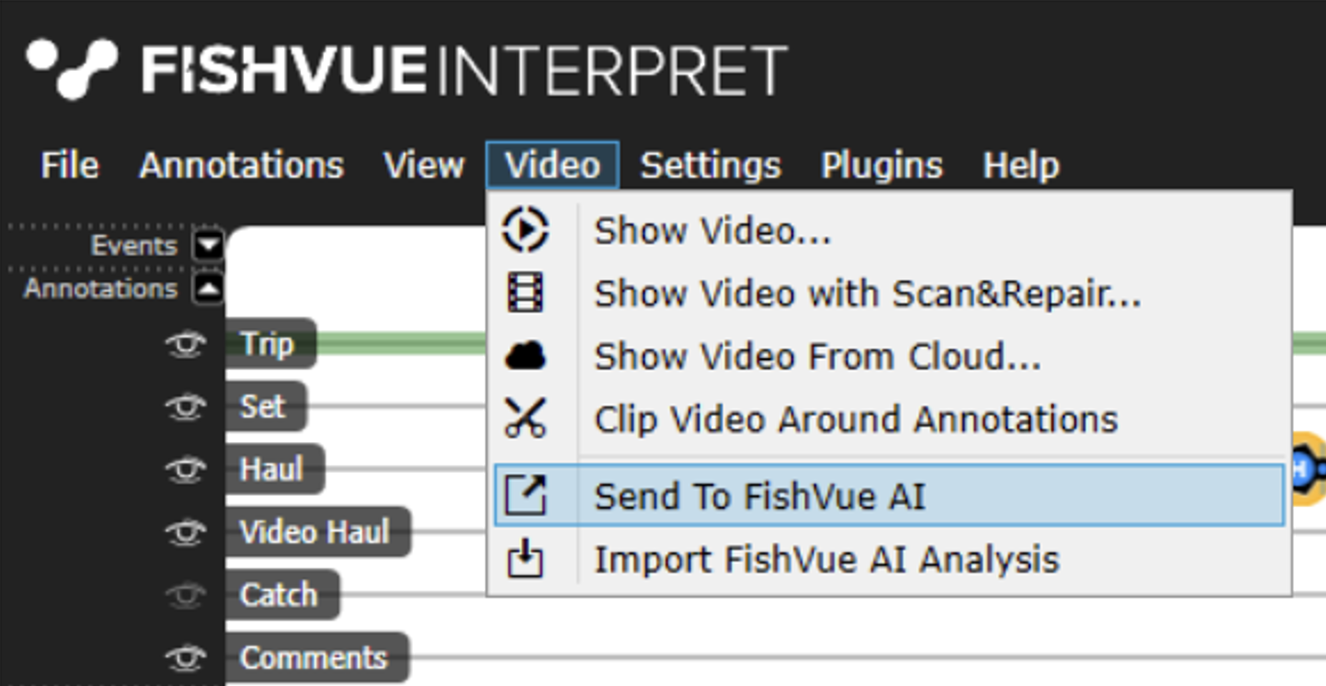
Each interval must include both a start and an end time to be eligible for analysis. Interpret uses the start and end times of each interval to determine which portions of your videos should be sent for analysis. 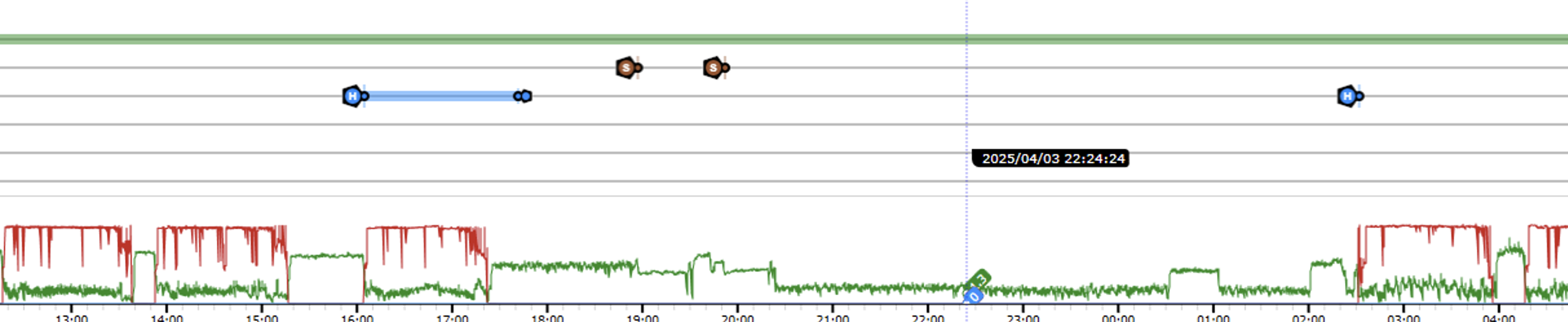
NOTE: To request AI analysis, it is essential that either the dataset’s video manifest or the actual video files are loaded in Interpret. Without one of these sources, the system cannot identify the video segments that correspond to the selected intervals.
 The settings used for FishVue AI analysis are displayed directly beneath the total number of video candidates. Before requesting analysis, it’s a good idea to review these settings to ensure they are correct.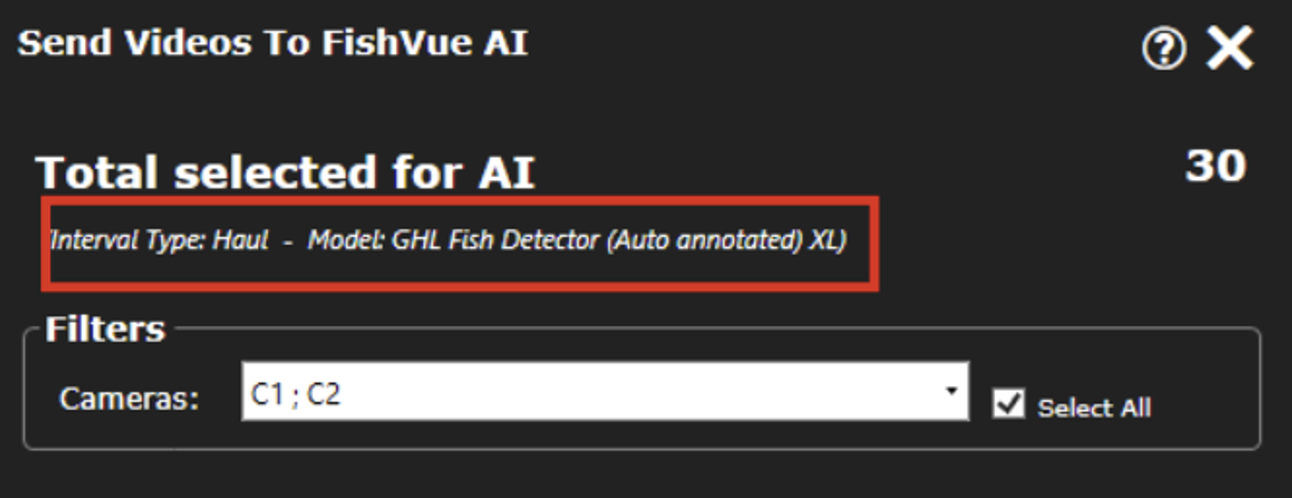
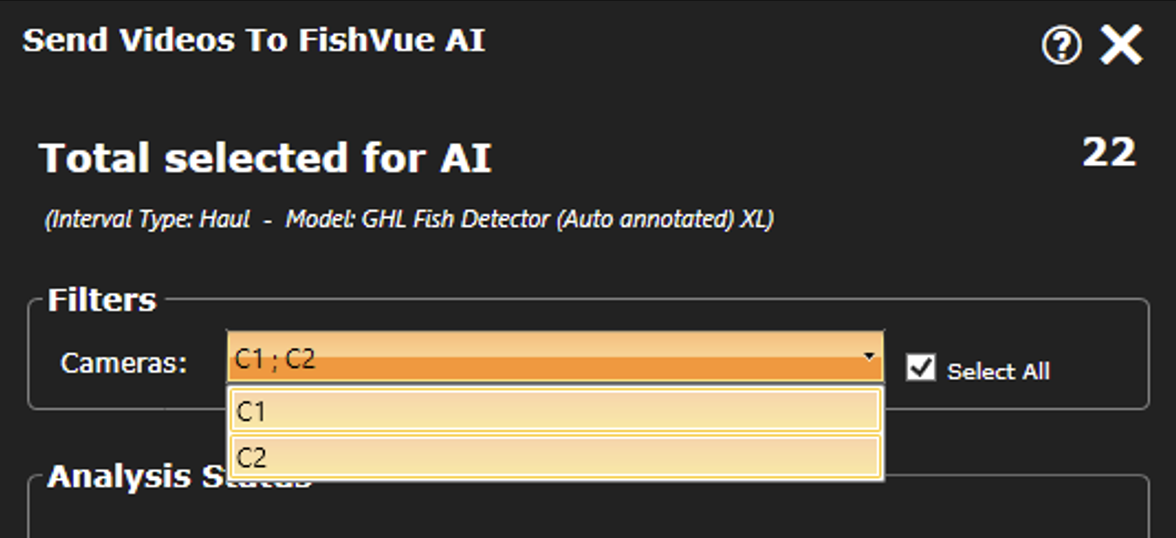
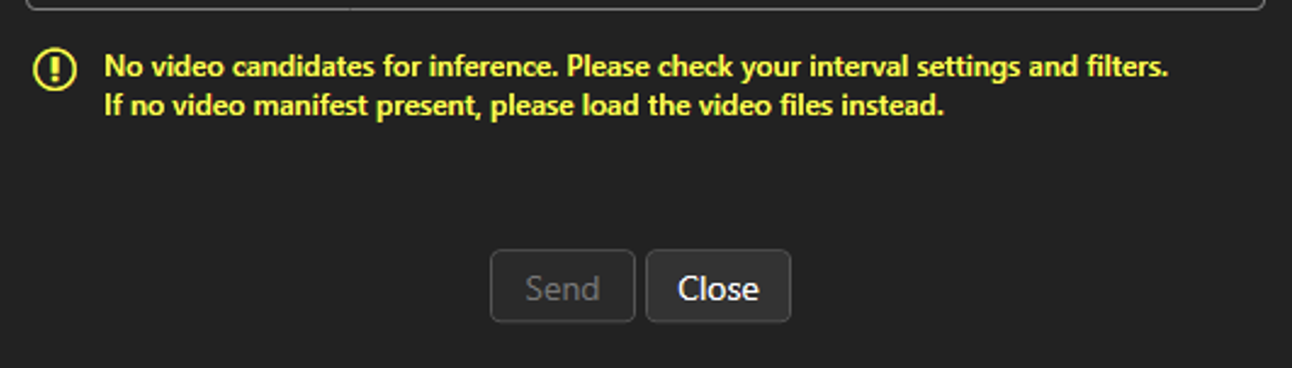
Video candidates can be filtered by camera to help refine your request. If the selected filters and settings result in no available videos, a warning message will appear at the bottom of the Send to FishVue AI window.
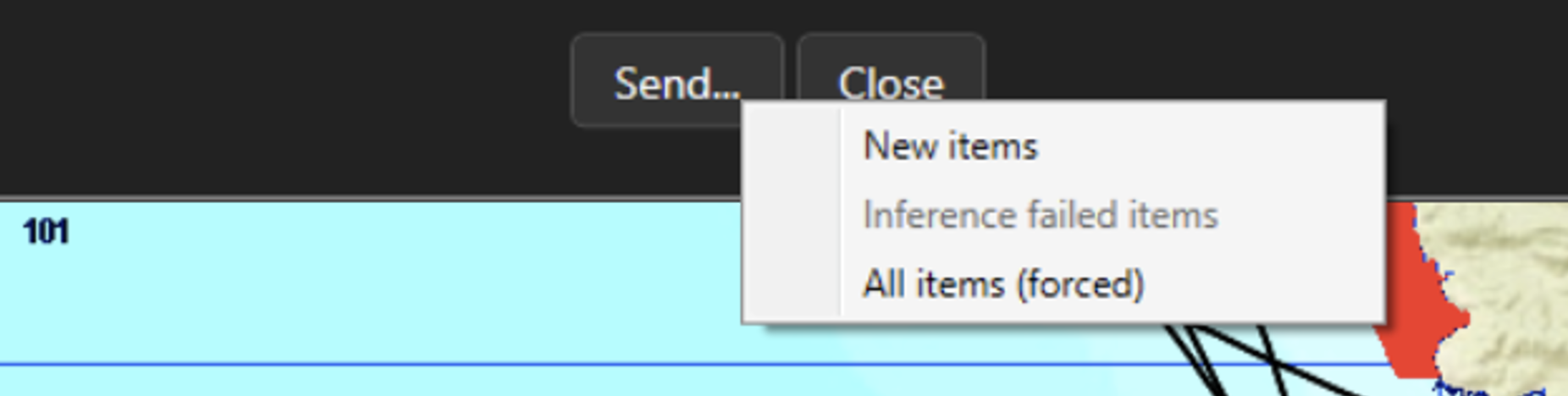
When sending requests to FishVue AI, you may see up to three options:
- New Items – Sends only the items that have not been submitted before. Any candidate previously requested will be skipped. This option is available only when new, unsubmitted candidates exist.
- Failed Items – Resubmits items that previously failed during analysis. This option appears only if there are failed items from earlier requests.
- All Items (Forced) – Sends all candidates for analysis, regardless of whether they were already submitted in the past.
5.2.2 Understanding the Analysis Status
Interpret automatically tracks the progress of your analysis requests and displays a detailed breakdown of each file’s status throughout the pipeline. Below is an explanation of each status shown in the breakdown.
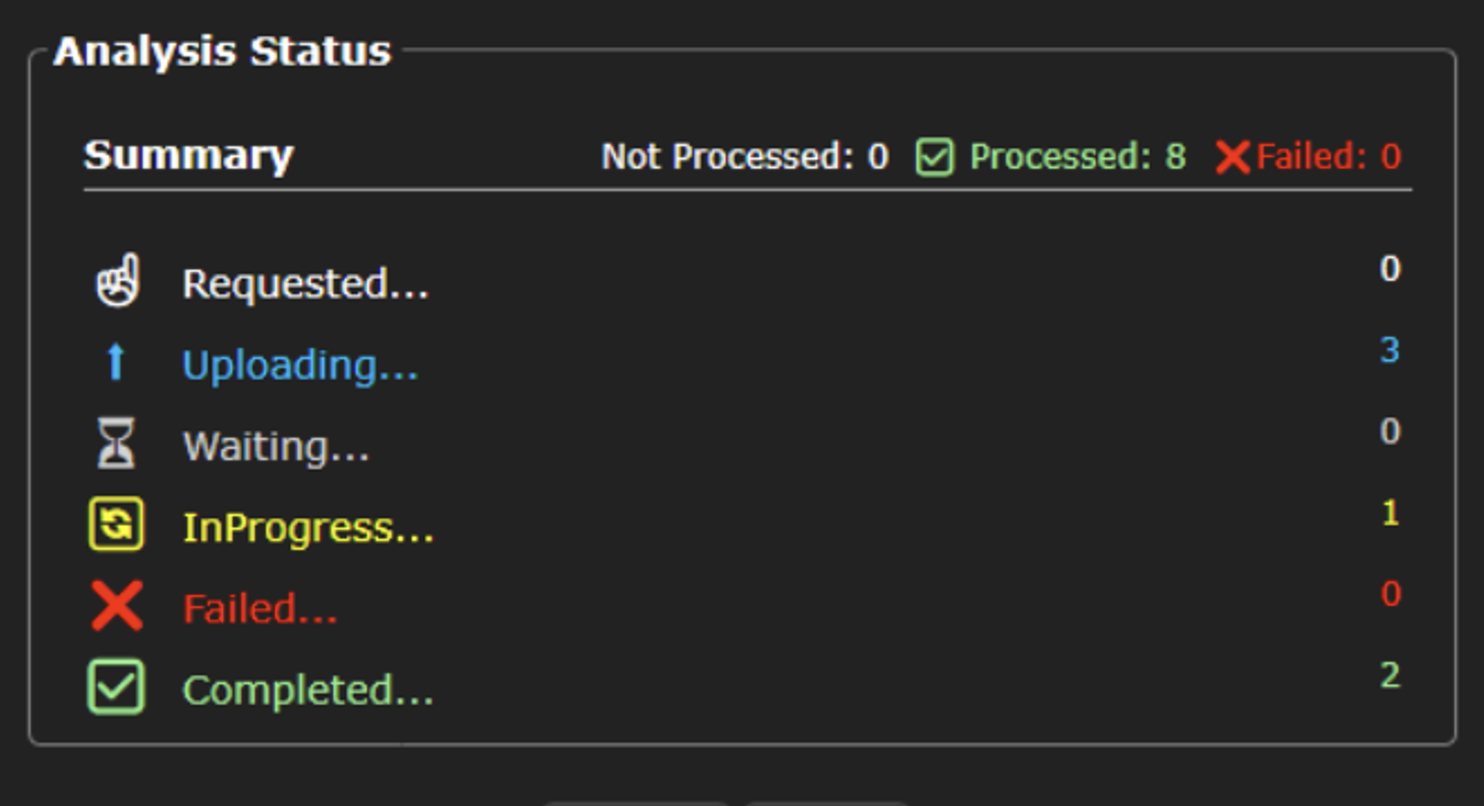
- Summary: provides an at-a-glance view of the analysis progress:
- Not Processed – Candidates that have not yet been submitted for analysis.
- Processed – Video files that have been requested and are currently undergoing analysis.
- Failed – Files whose analysis could not be completed due to an error.
- Requested – These are files for which an analysis request has been submitted, but the corresponding video has not yet been uploaded to the FishVue AI server.
- Uploading – Indicates that the video file associated with the request is currently being uploaded by the data agent.
- Waiting – The video file has been successfully uploaded and is now in the queue, waiting for FishVue AI to begin the analysis.
- In Progress – The video file is currently being analyzed.
- Failed – An error occurred during the analysis, and the video file could not be processed successfully.
- Completed – The video file was successfully analyzed.
5.2.2 Data Agent: Uploading Video to FishVue AI
After the videos are submitted for inference, a background process is responsible for uploading the required video files to the server. Interpret includes its own built-in data agent, which runs in the background and is fully managed by the application. This agent locates the video files on your connected external storage devices that correspond to the requests sent to FishVue AI and uploads them automatically.
If your video files are stored on a different device or computer, the data agent must be installed and run on that machine to allow the videos to be uploaded to the server. If you need the standalone version of the agent for installation within your organization’s environment, please contact your Archipelago representative.
5.3 Displaying Analysis Along with Video Files
5.3.1 Loading Detections
After a video is successfully processed and its inference analysis reaches the “Complete” status, opening the video will automatically load the associated results.
If needed, you can also load results manually from your local filesystem. To do this, make sure the results files use the same file name as their corresponding video.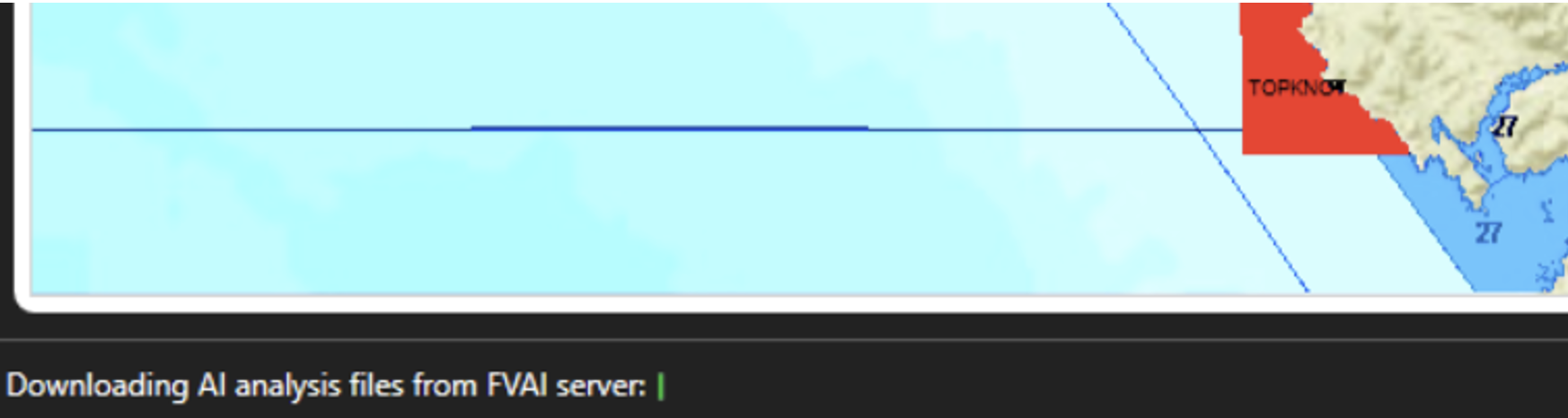
5.3.2 Visualizing Detections
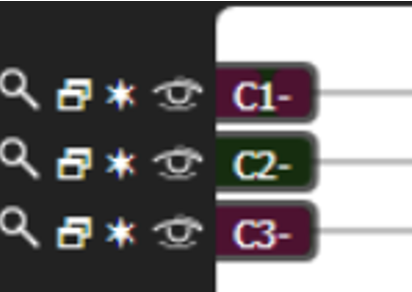
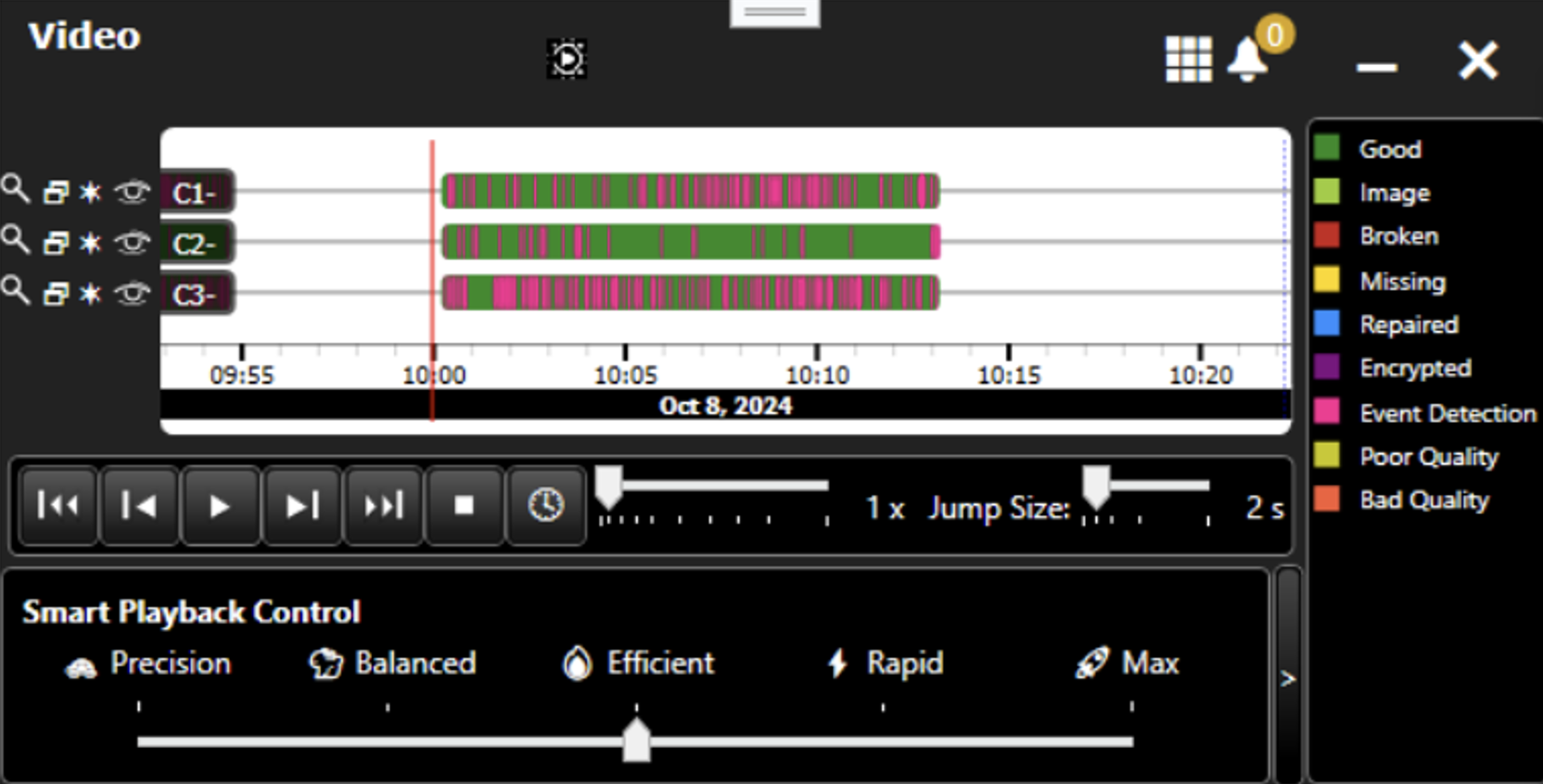
Loaded results appear on the main video box display as pink dots or highlighted sections. 
The magnifying glass icon in the video window indicates that the camera has AI events associated with it. You can use this control to enable or disable the use of detections for that specific camera. 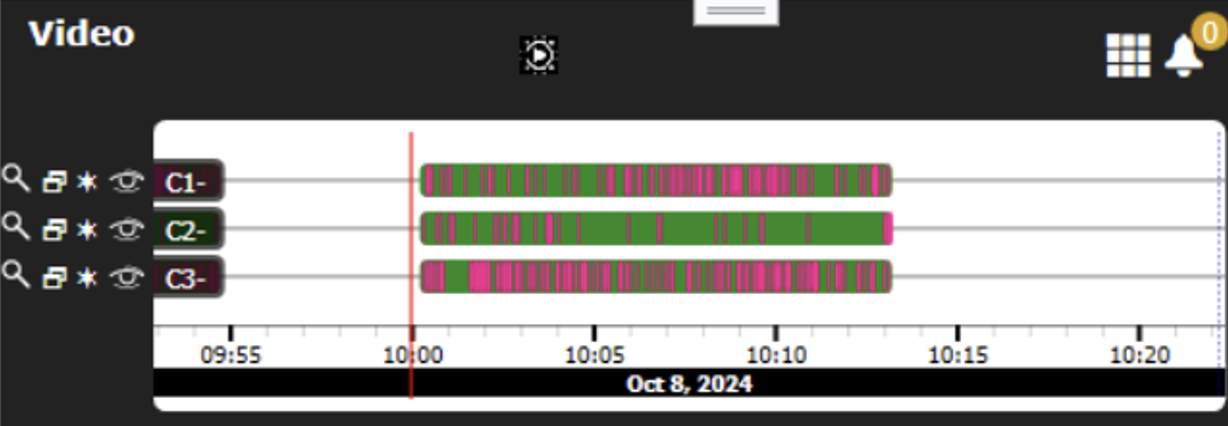
5.3.3 Playback Presets
Once the analysis results are loaded, the AI controls become available in the video control window. Five playback presets are provided by default — Precision, Balanced, Efficient, Rapid, and Max. Each preset includes predefined values for playback speed (during events and between events), grouping behavior, event padding, and acceleration.
Levels go from:
- Precision: Provides the slowest playback speed during detected events and between events. Used to smooth acceleration, minimal event grouping, and the largest context padding around each event.
To:
- Max: Delivers the highest playback speed both during detected events and between events. Uses no smooth acceleration, applies the strongest event grouping, and provides shorter context padding around each event.
5.3.4 Advanced Configurations
For more detailed customization, the Advanced Settings panel allows fine-tuning of AI playback parameters and detection filtering options. Display it with the arrow beside the Smart Playback Control panel. 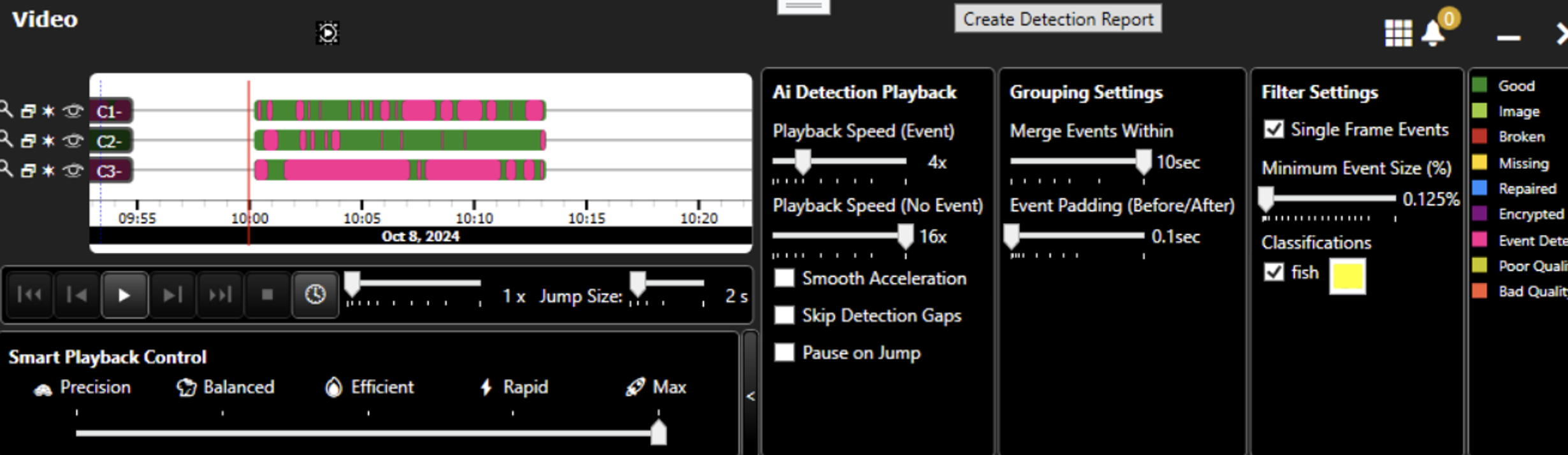
5.3.5 Filtering Detections
Filtering can help narrow down the detections, making it easier to focus on the events most relevant to your review goals.
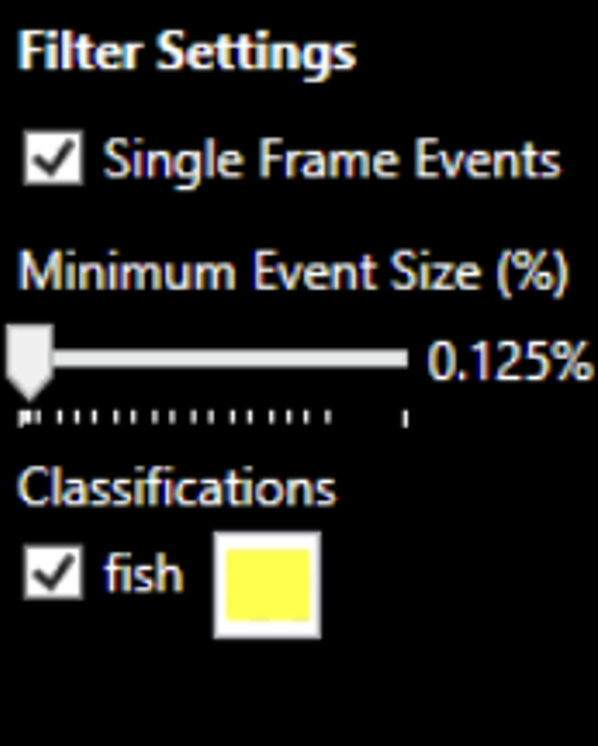
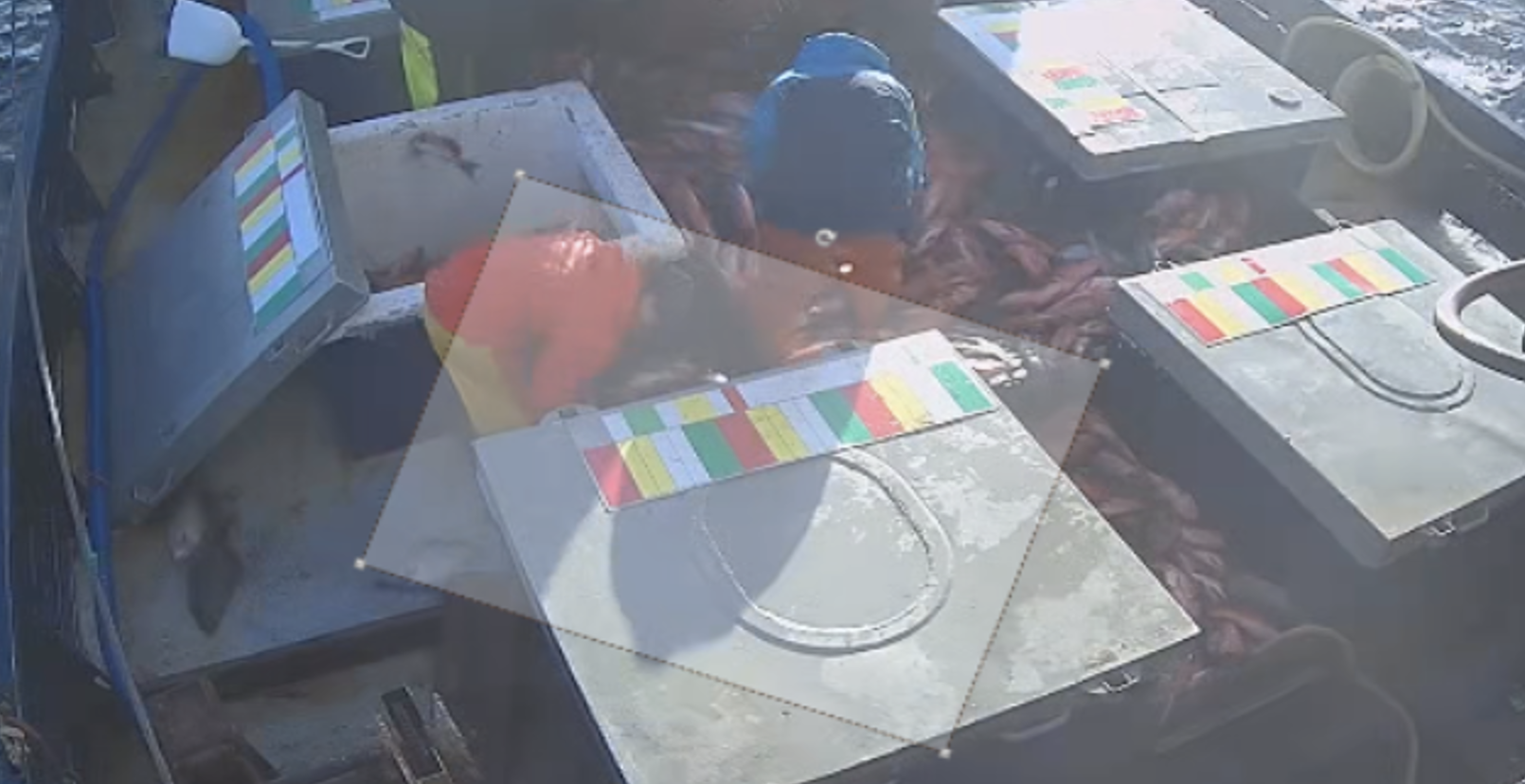
Detections can be filtered by size, frequency of appearance, type or by defining a specific area
of interest.
- Size: Detections can be filtered based on their size relative to the video frame.
Frequency of appearance: Single frame events can be filtered out. - Type: Select the classification labels to be shown
- Area of interest: Allows you to define a specific region within the video window.
Only detections that fall partially or fully inside this area will be displayed; all others will be filtered out.Interest areas can be rotated, resized or overlapped.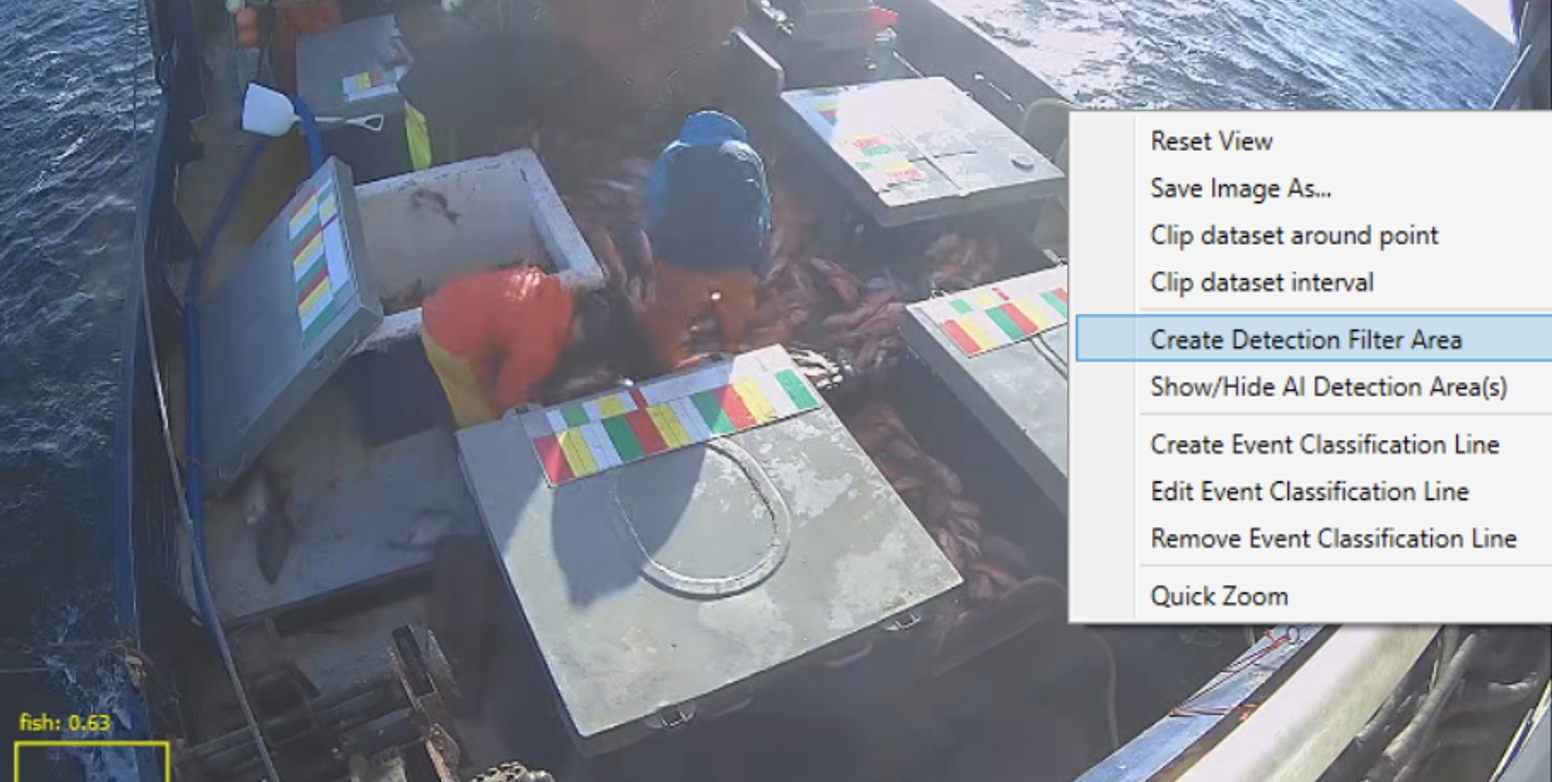
5.4 FVAI Status Monitoring
Interpret provides a way to monitor the status of the external tools used in the FishVue AI integration, including the FishVue AI Server and the Data Agent.
A small semaphore-style icon appears on the right side of the status bar, using red, yellow, or green to indicate the status of the external tools. 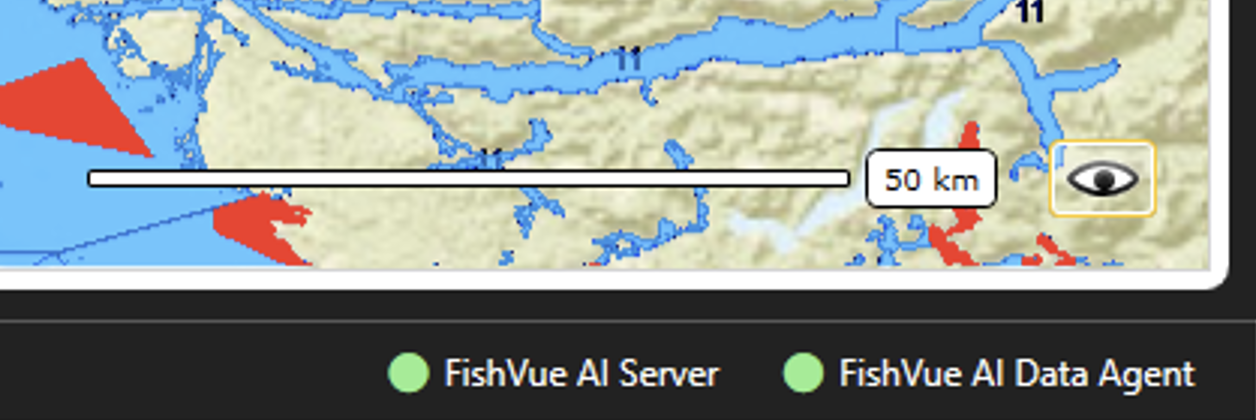
5.4.1 Server Status
Interpret subscribes to FishVue Server status events, receiving updates as a continuous stream. This indicates whether the server is currently available to handle analysis requests.
Hovering over the icon displays additional details about the server’s current status. 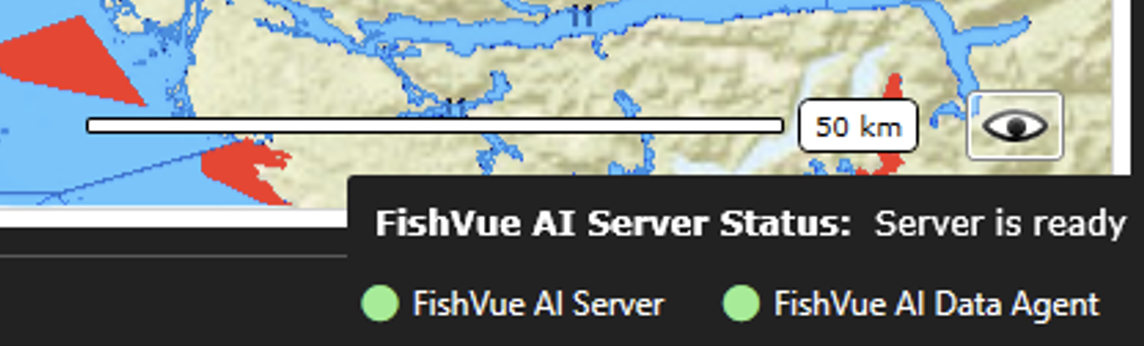
5.4.2 Data Agent Status
Interpret continuously monitors the status of the Data Agent, which is bundled and launched alongside it. It periodically checks the agent’s health and updates the color-coded status icon accordingly. When hovering over the icon, a context window becomes available, allowing you to reboot the agent if needed. 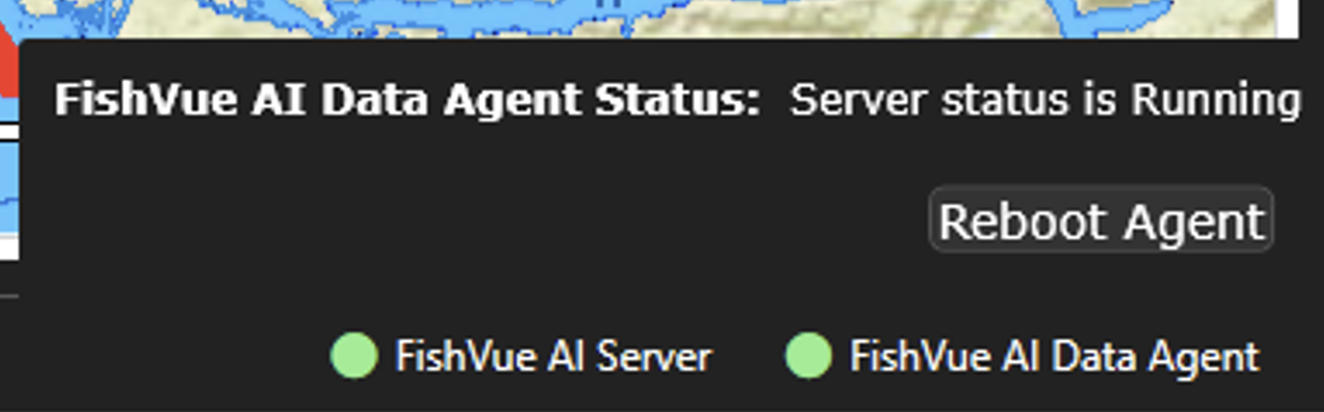
 Previous Chapter
Was this article helpful?
That’s Great!
Thank you for your feedback
Sorry! We couldn't be helpful
Thank you for your feedback
Feedback sent
We appreciate your effort and will try to fix the article