CHAPTER 01
INTRODUCTION
This section introduces the main parts of an electronic monitoring system and explains how FishVue Interpret helps you efficiently review fishing activity data. It also walks you through installing and registering the software, as well as renewing your license.
1.1 Introducing FishVue Interpret
Archipelago® FishVue Interpret™ makes it fast and easy to review, evaluate, and report on commercial fishing activity. It brings together thousands of GPS, sensor, and video records into one powerful, easy-to-use profile.
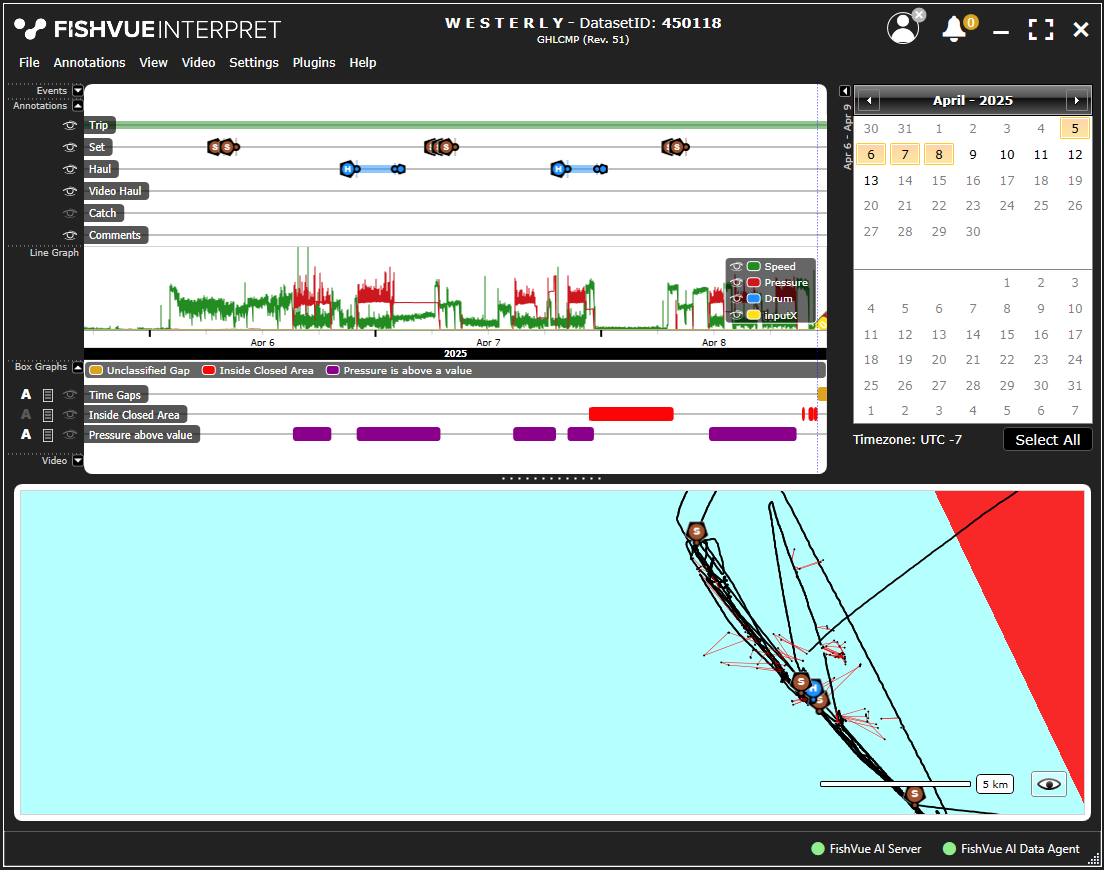
FishVue Interpret lets you efficiently review large amounts of data by linking EM system events, time-series graphs, data queries, and spatial plots of sensor data with synchronized playback of all camera images. From there, you can annotate fishery-relevant information and either report it or store it for later analysis.
By streamlining each step of the review process, FishVue Interpret turns months of sensor and video data into a clear summary of fishing activity.
The next sections guide you through installing and licensing FishVue Interpret.
NOTE: The Annotation Shortcut box includes two check- boxes. Select “Show Edit Window” to display additional details that you can modify, or select “Pause Video” to have FishVue Interpret automatically pause video playback whenever you’re entering an annotation.
1.2 Installing the Software
To install FishVue Interpret on your workstation:
- Download the FishVue Interpret installation (.msi) file provided by Archipelago.
- Double-click the .msi file to launch the installer.
The installer includes the FishVue Interpret application, style details (including maps), and a default configuration. You can also find the installer on the support site at support.archipelago.ca in the Interpret knowledge base.
1.2.1 System Requirements
FishVue Interpret Pro and FishVue Interpret Lite are designed for a PC workstation or laptop running Microsoft® Windows 11® 64-bit Professional operating system.
For interpreting equivalent or alternative hardware, please consult your local IT specialist or hardware supplier.
Viewing up to 8 cameras simultaneously at 5–10 fps (or increased playback speed)
Processor: Intel® Core™ i7-13700 or AMD Ryzen 7 7700 (8 physical cores / 16 threads)
Memory: 32 GB RAM
Video: NVIDIA® RTX™ 3060 (8 GB) or NVIDIA® RTX A2000 (6 GB) or better
Notes:
- Recommended for full multi-camera playback, including increased-speed or reverse playback.
- GPU-based hardware decoding (NVDEC/DXVA2) used via FFmpeg/Flyleaf significantly reduces CPU load.
- Systems with less powerful GPUs may experience dropped frames during high-speed playback or when decoding high-resolution streams (e.g., 4K).
Viewing up to 6 cameras simultaneously at 5 fps
Processor: Intel® Core™ i5-13500 or AMD Ryzen 5 7600 (6–8 physical cores)
Memory: 16-32 GB RAM
Video: NVIDIA® RTX A1000 / Quadro T1000 (4 GB) or better
Notes:
- Suitable for standard 1080p playback and light sensor data overlays.
- Increased playback speed or large data sets may require additional memory.
Basic viewing with up to 2 cameras simultaneously at 5 fps
Processor: Intel® Core™ i7-1255U or AMD Ryzen 7 7730U (4–8 cores, 4.5 GHz max turbo)
Memory: 16 GB RAM
Video: Intel® Iris Xe or AMD Radeon™ integrated graphics*
*Systems with a dedicated GPU and dedicated graphics memory will support more cameras and/or higher playback rates.
For All Systems
Storage:
- Internal SSD required.
- If video data is copied locally, size the storage for the maximum anticipated dataset.
- A dedicated SSD separate from the system (OS) disk is highly recommended for maximum video throughput when viewing multiple streams or large historical datasets.
- NVMe SSDs provide best performance when handling cached video segments or long-term sensor data.
Displays:
- Two 1080p Displays are recommended
To Install FishVue Interpret
- Double-click the appropriate installation file.
- Follow the on-screen instructions.
The application files are installed in a subfolder of your standard Program Files directory (for example, C:\Program Files\IFVInterpret\).
The installer will automatically upgrade any existing version of FishVue Interpret. If the upgrade fails, you may need to uninstall the existing version before installing the new one.
When installation is complete, you can proceed to register the software (see the next section).
1.3 Registering the Software
The first time you run FishVue Interpret, you must register the software. Your computer must be connected to the internet for this step. After activation, FishVue Interpret will work even when the computer is offline. You will be provided with an activation code and info tag to enter on the activation page.
To register FishVue Interpret:
- Make sure your computer is connected to the internet.
- Open FishVue Interpret from your desktop or applications menu.
- When the Activation window appears, enter your activation code and info tag, then follow the on-screen steps.
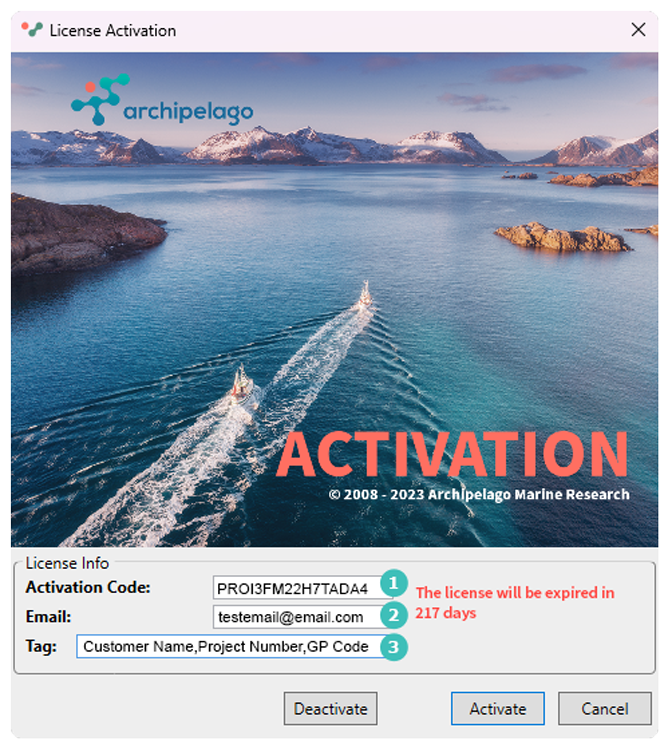
| 1. Copy and paste the activation code | 2. Enter your email | 3. Copy and paste the tag info |
Click the activate button. Your license is now active and you can use FishVue Interpret.
1.3.1 Renewing Your License
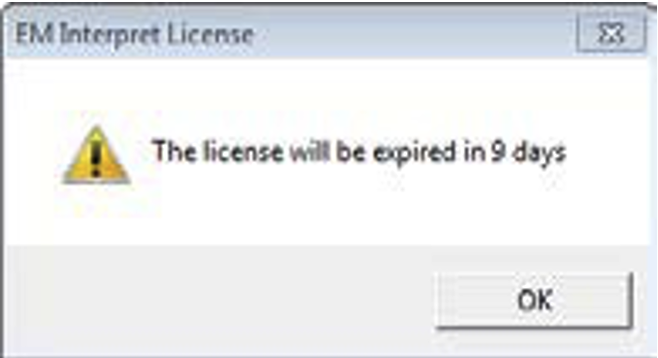
As your license approaches its renewal date, FishVue Interpret will prompt you to renew your license before it expires. This prompt will appear once at 90, 60, 30 days and then every day after 15 days before the end of the license period. Click OK on the message that appears.
To renew your copy of FishVue Interpret:
- Ensure your computer is connected to the internet.
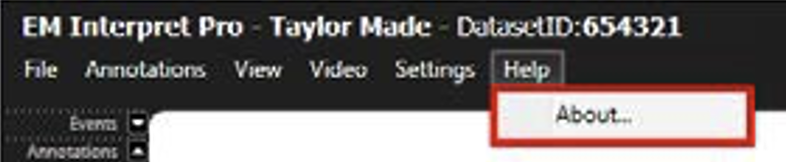
- When FishVue Interpret is open, navigate to the Help menu, choose About.
- The license activation window should appear.
- If provided with a new activation code, copy and paste it in the license info section.
- Click the activate button.
- The updated number of days the license is set to expire will be displayed in red.
1.3.2 Transferring Your License
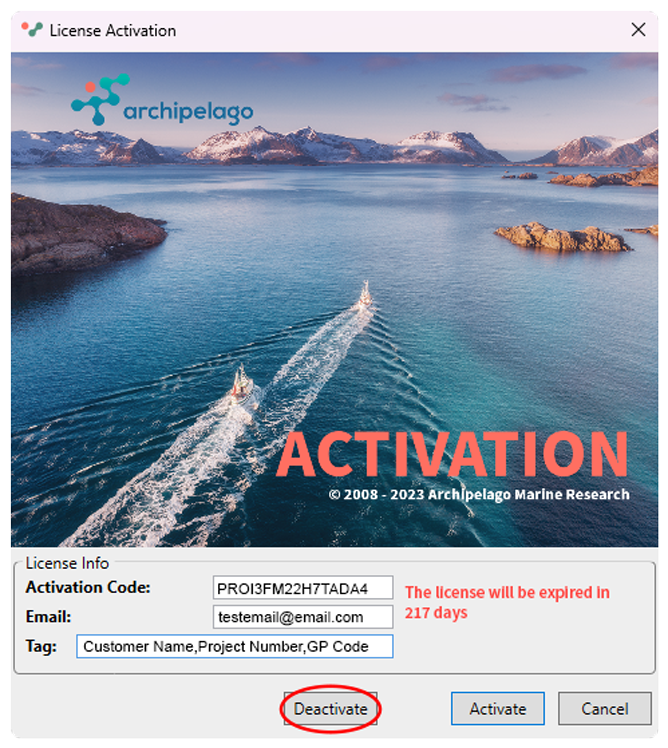
To transfer your license from one computer to another follow the steps below.
- Ensure your computer is connected to the internet
- When FishVue Interpret is open, navigate to the Help menu, choose About.
- Click the deactivate button.
- Uninstall the software.
- Follow the installation and license registration instructions for the other computer.
1.3.2 Software Upgrade
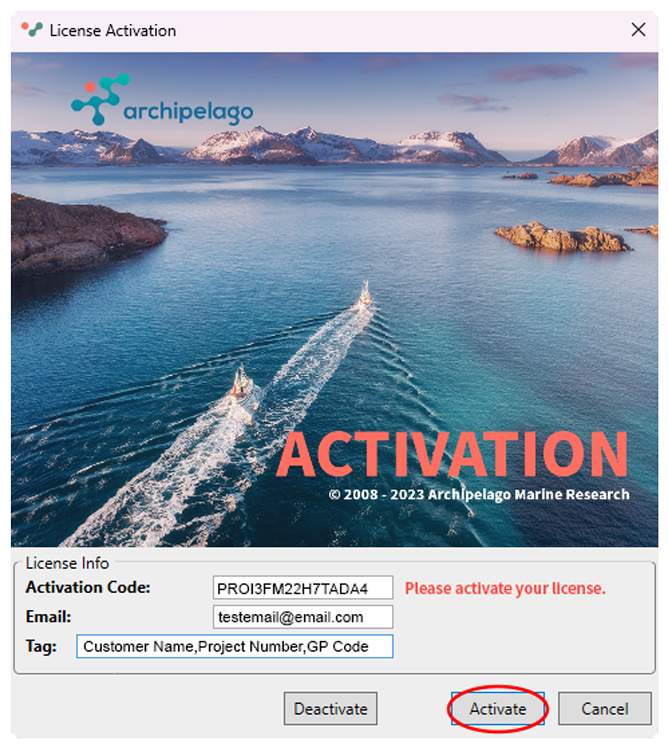
When you upgrade the software to a new version during a license term the License Activation window will appear when you open Interpret.
- Install latest version of software.
- Ensure your computer is connected to the internet.
- Click the activate button.
FishVue Interpret will open normally.
 Previous Chapter
Was this article helpful?
That’s Great!
Thank you for your feedback
Sorry! We couldn't be helpful
Thank you for your feedback
Feedback sent
We appreciate your effort and will try to fix the article