
FishVue Interpret: AI Assisted GHL Review User Guide
Contents
Step 1: Receive and Plug in the Drive
Step 2: Upload Sensor Data to Portal
Step 3: Open Sensor Data in Interpret and Perform Sensor Review
Step 4: Start AI Procedure
Step 5: Review with AI Detections
Step 6: Provide Feedback
What You Need to Know
Reminders
Fishery Data Review Workflow with AI Assistance
This manual outlines the process for handling hard drives, uploading sensor data, annotating fishing events, and using AI to assist with video review. This document describes the process for GHLCMP analysis for all gear types (Longline, Trap, Troll and Jig). Updates will be made to include more fishing types soon and will be reflected in this manual.
Step 1: Receive and Plug in the Drive
When a hard drive arrives at an office:
- Plug it into any available workstations drive reader slot in preparation for data review and video analysis.
- The drive must remain plugged in until the video review is completed by the review team.
- Coordinate with the review team to inform port personnel when video review is complete. Then the drive can be unplugged.
Step 2: Upload Sensor Data to Portal - Sensor Review Stage
Use the local workstation:
- Locate and extract sensor data files: GPS, video manifest files, hydraulic pressure, drum RPM.
- Note: Do not include Video Files
- Upload this sensor data into the Portal.
✅ Confirm the upload is complete before moving on.
Step 3: Open Sensor Data in Interpret - Sensor Review Stage
To continue the review:
- Access (Local or Remote) computer connected to the drive and open FishVue Interpret
- Begin annotating the data with sets and hauls (fishing events).
- Check that video is available within the randomly selected haul(s) and reselect if they are missing.
- Be careful to annotate the start and end of each randomly selected haul events.
✅Save and sync annotations back to Portal when done.
Step 4: Beginning The AI ProcedureWhile still in Interpret, for GHLCMP trips: Use the new "Send to FishVue AI" feature This will bring forward the “Send to FishVue AI” Window. ✅ Make sure the correct trip and hauls are selected before sending. | |
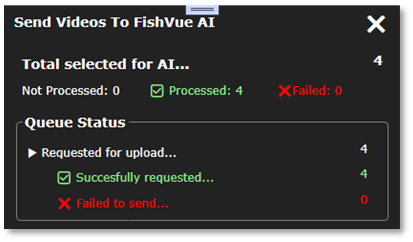
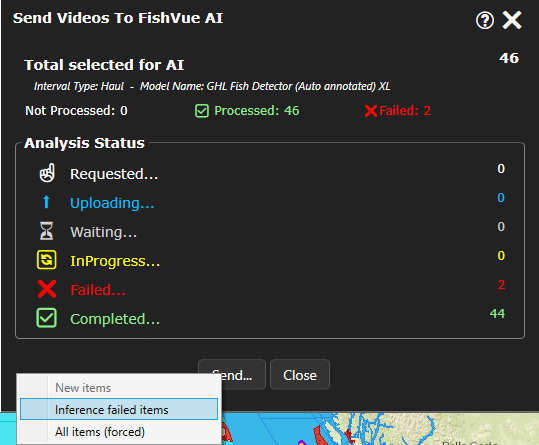
Understanding the ‘Send Videos To FishVue AI’ Window The dialog is organized into three panels, each tracking a different phase of the process: Pipeline Summary – Figure 4 What it shows: An overview of how many requests were submitted, how many have been successful, and any that encountered errors in the upload process. Why it matters: Quickly confirms that your request has been received and gives an overview of total progress. Queue Status – Figure 5 What it shows: A detailed list of the upload request status. If your videos are not uploaded directly and need to be queued for upload, you can track the status here. Why it matters: Lets you verify that every video segment was successfully request for upload to the AI service and highlights any problems within that process. Analysis Status – Figure 6 What it shows: The per-video count of AI processing stages—Pending, In-Progress, Completed, or Failed. Why it matters: Tracks the AI analysis itself, so you know exactly when results will be ready for review alongside your video playback.
It is safe to close this window and dataset to continue working or queue up another set of videos. When you re-open the dataset, the status will reflect its analysis progress as you would expect. It is safe to logout from the computer. Logging out will not interrupt the upload and AI processing. DO NOT SHUT DOWN THE COMPUTER Resending failed clips In the event any clips show up as "failed", you can attempt to run them again by clicking the "Send.." button and select "Inference failed items". |
Figure 4 – Send to FishVue AI
Figure 5 – Videos Uploading 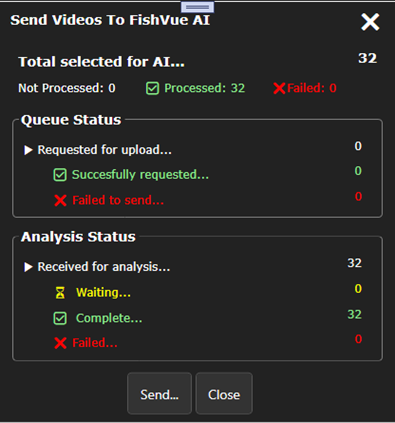 Figure 6 – Analysis Progress
Figure 7 – Inference Failed |
 NOTE: Once the process has started (Send Button has been pressed) It will continue in the background.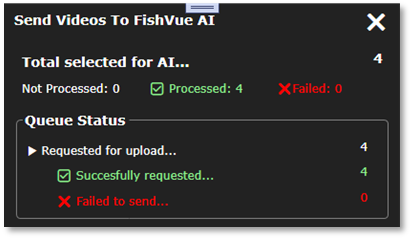
Step 5: Review with AI Detections
Later, when the dataset is reopened in Interpret for video review:
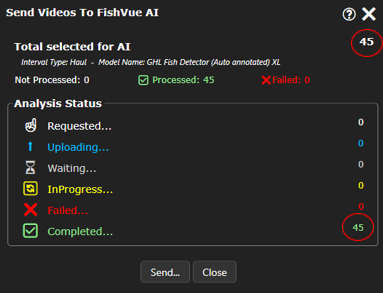
- Confirm all videos have been successfully inferenced by opening the Send Videos To FishVue AI window.
- Confirm that the total selected for AI matches the total completed, as in the example below. If not attempt to resend any failed clips as described above.
- Video will be reviewed off the original hard drive on the computer it is plugged into in Step 1.
- Reviewers can review video using the AI playback feature to fast forward between detections.
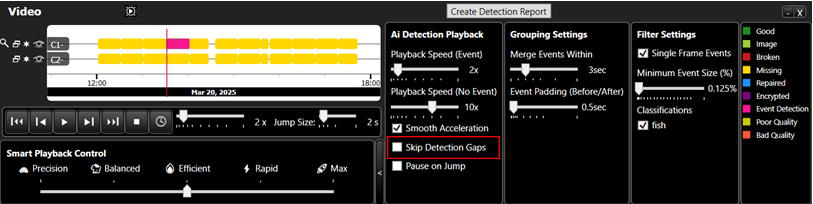
- Ensure the check box for Skip Detection Gaps remains unchecked (this is the default state, see red box below).
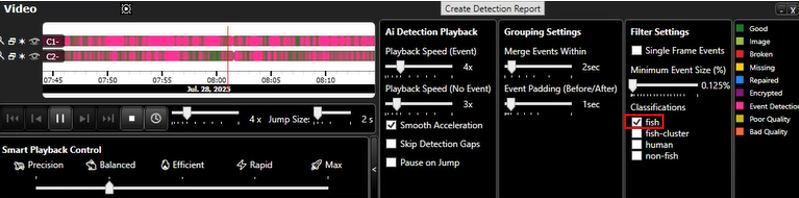
- Ensure only fish is selected under Classifications.
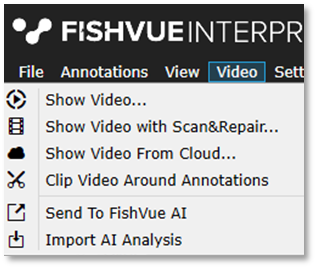
Loading Video with AI Analysis Opening Video – Use the Video menu and from the drop down select the “Show Video” option. This will bring up a file explorer window where you can select the video files you wish to open. Opening AI Analysis – You will see two stages of progress bars in the lower right-hand corner of the screen indicating the download and parsing. These should be completed quickly, at which point your system will be ready to use the AI detections for enhanced playback.
|
Figure 8 – Video Menu
Figure 9 – Loading AI Analysis Part 1
Figure 10 – Loading AI Analysis Part 2 |
 NOTE: FishVue Interpret will automatically search for analysis files matching the videos selected to download and open in your session.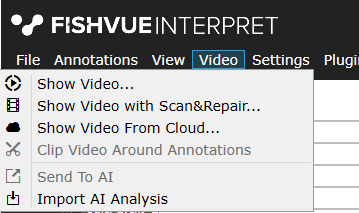


Step 6: Provide Feedback
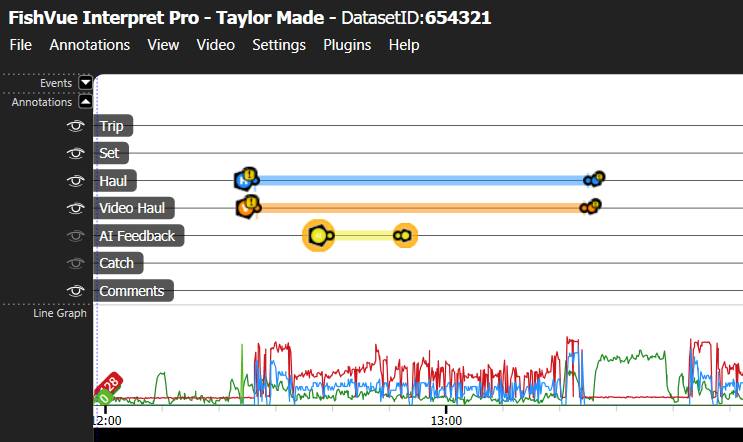
For each reviewed event, create an AI Feedback annotation and include any constructive or positive feedback in the comments.
AI Feedback Annotation
The AI Feedback annotation is a child of the Video Haul.
It can be created as either a point or an interval.
You may add multiple AI Feedback annotations per haul, if needed.
Detections Field
Select one of the following options for each review:
Detections loaded and were used
Detections loaded but were not used
Detections did not load
Comments Field
Indicate whether AI assistance was used throughout the review or if you had to stop using the AI tool.
Include details about how the review went, for example:
AI worked well during daytime
False detections occurred at night
Any other notable behavior
File Upload
Upload your EMI file to the portal using standard protocols.
If You Encounter Issues
If you experience any issues that:
Affect the quality or completeness of the review, or
Are expected to significantly increase review time
Please do the following:
Turn off AI assistance and complete the review without detections.
Record details in the AI-Assisted Review annotation, including:
Why detections were turned off
Save the video to:
Unless it has already been saved to:
(as indicated on the Trips Ready to View report when the Copy Dataset column is marked Yes).
What You Need to Know
Task | Responsibility | Notes |
Plug in hard drive | Office intake team | Must stay plugged in until video review is complete |
Upload sensor data | Office intake team | Use Portal |
Annotate sets & hauls | Reviewer | Use Interpret |
Send video for inference | Reviewer | New Interpret function |
Final review | Reviewer | AI results auto-load |
| Review Complete! | Reviewer | Communicate to the port that video review is complete and drive can be unplugged. |
Reminders
- ✅ Keep drives plugged in until the entire review process is finished
- ✅ Use correct trip IDs when uploading and annotating
- ✅ Ensure strong internet connection for Portal and Interpret syncing
- ✅ Contact tech support if video inference fails or data doesn’t load
- ✅ Notify staff when video review is complete and drive can been unplugged.
Was this article helpful?
That’s Great!
Thank you for your feedback
Sorry! We couldn't be helpful
Thank you for your feedback
Feedback sent
We appreciate your effort and will try to fix the article