TABLE OF CONTENTS
Introduction
Interpret is a desktop application built on .NET 8 and uses Windows Presentation Foundation (WPF) for its user interface. The application is designed exclusively for Windows platforms and runs on x64 architecture.
Platform and Technology Requirements
Because Interpret is a WPF-based .NET 8 application, all plugins must be built to run in the same environment. This ensures compatibility with the application’s runtime and its UI rendering model. Plugins should target:
- .NET 8 runtime
- WPF for UI components
- Windows x64 as the deployment architecture
Plugin Development Guidelines
Developers building plugins for Interpret should follow these guidelines:
- Match Core Technologies – Plugins must be compiled against .NET 8 and structured to work within a WPF environment.
- UI Integration – Any UI elements within the plugin must use WPF controls and adhere to WPF’s MVVM or similar design patterns for consistency.
- Custom Interfaces Allowed – Plugins may define their own user interfaces, provided they respect WPF conventions and integrate cleanly into the host application.
- Windows-only Deployment – Plugins should not rely on platform-agnostic or cross-platform UI frameworks, as Interpret will only run in Windows x64.
Interpret Version
External plugin implementations are available in Interpret from version 3.0.7
Interpret Plugin Development
A plugin is a self-contained assembly (usually a .dll) that extends the functionality of a host application without modifying the host’s core code. In WPF desktop apps, plugins are typically:
Loaded at runtime via reflection.
Discovered through a defined interface contract (shared between the host and the plugin).
Executed within the host process, sharing the same AppDomain (unless explicitly isolated).
Core Components
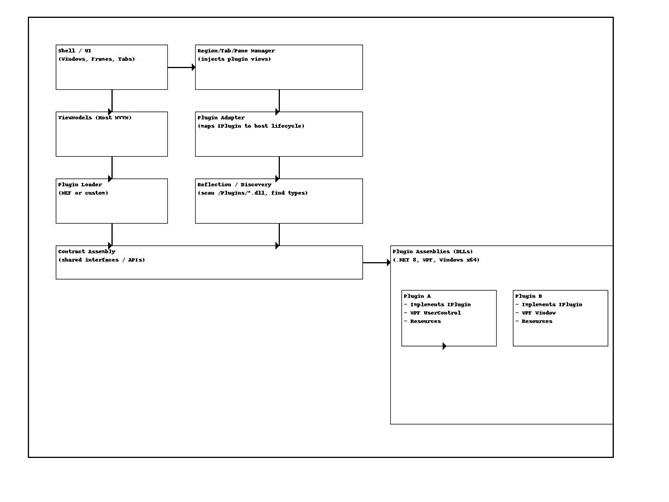
- Shared Contract Assembly: Interpret defines an interface in a shared assembly. Both Interpret and the plugin project reference this assembly, ensuring a common contract.
- Plugin Assembly: A plugin implements the shared interface(s). It can contain any WPF UI elements (Windows, UserControls, DataTemplates) if needed. Targets the same .NET version and WPF framework as the host for compatibility.
- Assembly loader: Interpret loads the plugin assemblies dynamically. Searches for types that implement the plugin interface and then instantiates them and integrates them into the application’s workflow or UI.
Plugin Interface
This section describes the interface your plugin must implement so Interpret can load and execute it. The interface defines a simple, typed contract for building plugins that process XML and JSON inputs and return results as XML through a callback.
Plugin Interface Architecture
The EMPluginInterface namespace defines three core interface layers:
- IRootPlugin – Declares common metadata every plugin must provide.
- IPluginBase<TAnnotation, TTrack, TFinishedHandler> – Declares the execution contract for plugins, using generic types for input and callback signatures.
- A concrete specialization, IPlugin, that binds the type parameters to XmlDocument, JsonDocument, and a custom PluginFinishedHandler.
NOTE: Interpret only loads external assemblies that implement the IPlugin interface.
Interface Definitions
All plugins must provide:
- Name – Short identifier for the plugin.
- Description – Human-readable explanation of what the plugin does.
- Usage – Instructions or guidelines for using the plugin.
- Execute function
- Parameters:
- XmlDocument – Annotations XML object.
- JsonDocument – CruiseTrack Json object.
- PluginFinishedHandler (delegate accepting an XmlDocument) – Callback invoked when processing is complete.
- Return: bool – Indicates whether the plugin accepted and started processing the input.
Plugin Implementation
Understanding the data
When executing a plugin, Interpret prepares and transmits the data payloads required for processing. This payload consists of two structured objects:
- Annotations Data (XML)
- This object represents the complete annotations hierarchy, including all nodes, attributes, and associated content, serialized in XML format.
- Its schema and structure are identical to those defined in the *.emi file specification, ensuring compatibility between saved annotation files and runtime data.
- The XML encapsulates the full annotation tree, preserving relationships, metadata, and domain-specific elements.
- Cruise Track Data (JSON)
- This object contains a chronologically ordered sequence of geographic points, where each entry includes GPS coordinates and an associated timestamp.
- The dataset is sourced directly from the Vessel Dataset and reflects the recorded navigation track for the relevant operational period.
- The JSON format provides an efficient, structured representation suitable for parsing, mapping, and spatial-temporal analysis within plugins.
Step by step guide
Prerequisites
- OS/Arch: Windows x64
- SDK: .NET 8 SDK
- UI: WPF (if your plugin has UI)
- Contract: Reference the shared EMPluginInterface assembly (the one that defines IPlugin, PluginFinishedHandler, etc.)
- Create the Plugin Project
Create a Class Library (or WPF Class Library if you plan to ship views):
1. <Project Sdk="Microsoft.NET.Sdk">
2.
3. <PropertyGroup>
4. <TargetFramework>net8.0-windows</TargetFramework>
5. <UseWPF>true</UseWPF>
6. <PlatformTarget>x64</PlatformTarget>
7. <Nullable>enable</Nullable>
8. <ImplicitUsings>enable</ImplicitUsings>
9. </PropertyGroup>
10. </Project>
11.
If your plugin is headless (no UI), you can omit <UseWPF>true</UseWPF>, but leaving it on is harmless.
2. Copy EMPluginInterface project or dll and reference it from your plugin project
Because your project must implement the IPlugin interface, it needs access to the EMPluginInterface definitions. You can satisfy this requirement by either referencing the EMPluginInterface project directly or by including the provided DLL in your plugin project (see Appendix).
Both options are supplied, so you may choose whichever integration method best fits your development setup.
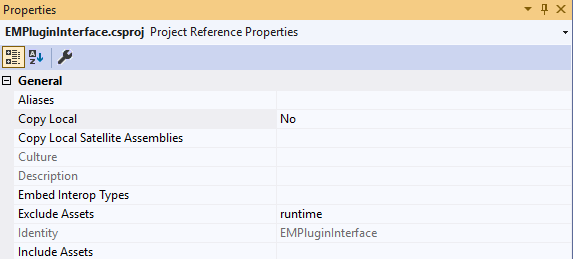
!! IMPORTANT: Do not include EMPluginInterface.dll in your plugin package. Your plugin must reference the exact EMPluginInterface.dll that ships with Interpret. To ensure this, configure your project so that EMPluginInterface.dll is not copied to the build output directory, or manually remove it from the output before packaging (zipping) your plugin. |
Example:
1. <Project Sdk="Microsoft.NET.Sdk">
2.
3. <PropertyGroup>
4. <OutputType>Library</OutputType>
5. <TargetFramework>net8.0-windows</TargetFramework>
6. <Nullable>enable</Nullable>
7. <ImplicitUsings>enable</ImplicitUsings>
8. <UseWPF>true</UseWPF>
9. </PropertyGroup>
10.
11. <ItemGroup>
12. <ProjectReference Include="..\EMPlugins\EMPluginInterface\EMPluginInterface.csproj">
13. <Private>false</Private>
14. <ExcludeAssets>runtime</ExcludeAssets>
15. </ProjectReference>
16. </ItemGroup>
17.
18. </Project>
3. Understand the Contract (what you must implement)
Review and understand the plugin interface structure, members to implement and parameters to receive.
4.Implement the Metadata
Create a public, non-abstract class implementing IPlugin. Provide stable values for the class properties.
5. Implement Execute method
Implement the Execute method in your new non-abstract class. This method must contain all the logic from your plugin. Execute can run async operations.
Invoke the PluginFinishedHandler if you want to return a modified Annotations data XML to be loaded by Interpret.
6. (Optional) Add a WPF UI
If your plugin exposes UI (UserControl/Window), keep it WPF/MVVM:
- Create your UI controls; Window, UserControl (e.g., Views/TrackPanel.xaml)
- Keep logic in a ViewModel
- Avoid global Application resources; use local ResourceDictionaries and predictable keys
- Trigger your UI within the Execute function.
Example
1. using System.Diagnostics;
2. using System.Text.Json;
3. using System.Xml;
4. using EMPluginInterface;
5.
6. namespace EMPluginInterfaceTests
7. {
8. public class TestImplementationPlugin : IPlugin
9. {
10. public string Name => "IPluginTest";
11.
12. public string Description => "Test implementation of the IPlugin interface";
13.
14. public string Usage => "";
15.
16. public bool Execute(XmlDocument annotationData, JsonDocument cruiseTrackData,
17. PluginFinishedHandler finishedHandler)
18. {
19. Debug.WriteLine("TestImplementationPlugin started.");
20. if (annotationData == null || cruiseTrackData == null)
21. {
22. Debug.WriteLine("Annotation data or cruise track data is null.");
23. return false;
24. }
25.
26. // ***Start your interface
27.
28. // *** Do some background work
29.
30. // *** Do your changes to annotationData if any.
31.
32.
33.
34. finishedHandler?.Invoke(annotationData);
35.
36. return true;
37. }
38. }
39. }
40.
Plugin Execution Workflow
- Interpret loads all the IPlugin implementations at start and reloads them if a new plugin is added.
- Interpret prepares:
- An XmlDocument containing full annotation data tree.
- A JsonDocument containing track data
- A PluginFinishedHandler delegate to receive results.
- Interpret calls:
bool started = plugin.Execute(xmlDoc, jsonDoc, handler);
- Plugin processes input:
- Can operate synchronously (call handler before returning)
or asynchronously (call handler later). - Returns true if execution started successfully; false otherwise.
- Can operate synchronously (call handler before returning)
- Handler receives a processed XmlDocument when the plugin finishes.
- Interpret loads the annotation data XmlDocument and replaces the current annotation tree.
Plugin packaging
- Confirm project settings
Open your plugin .csproj and make sure it targets the same stack as the host:
- Reference the same version of EMPluginInterface the host uses.
- If you have WPF XAML/resources, leave <UseWPF>true</UseWPF>.
1. <PropertyGroup>
2. <TargetFramework>net8.0-windows</TargetFramework>
3. <UseWPF>true</UseWPF> <!-- if you ship WPF UI -->
4. <PlatformTarget>x64</PlatformTarget>
5. <Nullable>enable</Nullable>
6. <ImplicitUsings>enable</ImplicitUsings>
7. </PropertyGroup>
8.
2. Restore packages
CLI:
1. dotnet restore
Visual Studio: Build → Restore NuGet Packages (usually automatic).
3. Build (framework-dependent; typical for plugins)
This produces YourPlugin.dll and PDBs.
CLI:
1. dotnet build -c Release -p:Platform=x64
VS: set Configuration=Release, Platform=x64, then Build.
Artifacts go to:
./bin/Release/net8.0-windows/
4. Collect third-party dependencies (publish to a folder)
When to skip this step: If your plugin only depends on framework + packages that the host already ships (or probes via shared folders), the single DLL (plus any satellite resource DLLs) might be enough. If you use extra third-party packages that the host does not deploy, continue reading Step 4 to gather them.
To copy your plugin and its NuGet dependency DLLs into one folder, use publish with CopyLocal:
1. dotnet publish -c Release -p:Platform=x64 `
2. -p:CopyLocalLockFileAssemblies=true `
3. -o ./publish/win-x64
This keeps it framework-dependent (host provides .NET). You’ll get:
publish/win-x64/
YourPlugin.dll
YourPlugin.pdb
(any *.dll dependencies)
(resource folders for satellite assemblies, if any)
5. Do not include EMPluginInterface.dll in your plugin package
Your plugin must reference the exact EMPluginInterface.dll that ships with Interpret. To ensure this, configure your project so that EMPluginInterface.dll is not copied to the build output directory, or manually remove it from the output before packaging (zipping) your plugin.
6. (Optional) Versioning & SourceLink
Set assembly/file versions so the Interpret can diagnose issues:
1. <PropertyGroup>
2. <Version>1.2.0</Version>
3. <AssemblyVersion>1.2.0.0</AssemblyVersion>
4. <FileVersion>1.2.0.0</FileVersion>
5. <RepositoryUrl>https://your.repo/url</RepositoryUrl>
6. <PublishRepositoryUrl>true</PublishRepositoryUrl>
7. <EmbedUntrackedSources>true</EmbedUntrackedSources>
8. <ContinuousIntegrationBuild>true</ContinuousIntegrationBuild>
9. </PropertyGroup>
7. Zip the binary folder
Compress all files from the binary output directory (./bin/Release/net8.0-windows/) into a single ZIP archive, and name the ZIP file using your plugin’s name followed by its version number.
Installing a plugin
Interpret offers two places to install the plugin:
- Initial window
The Initial Selector Window offers a plugin manager window by clicking on the settings button.
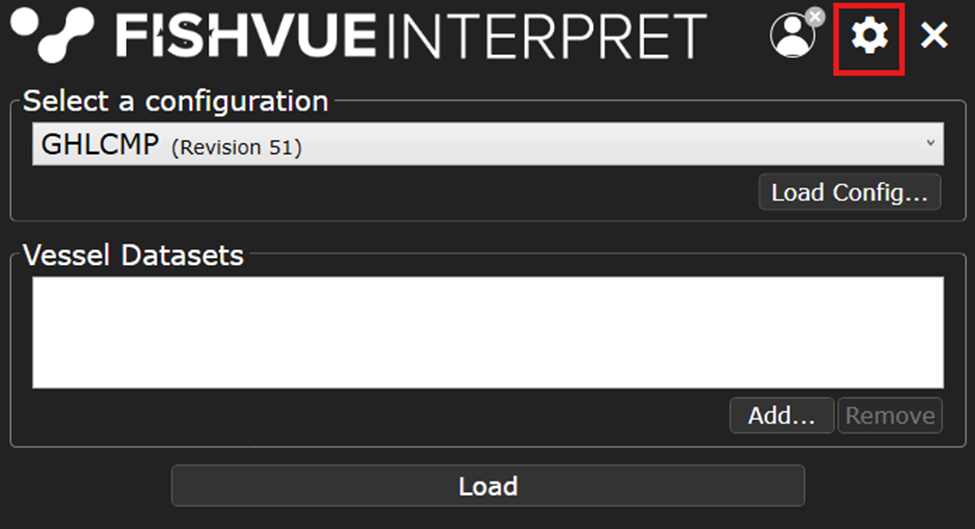
The Plugin Manager allows you to:
- Add new plugins
- Delete plugins
- Enable and Disable plugins
- Refresh the plugins assembly loaded.
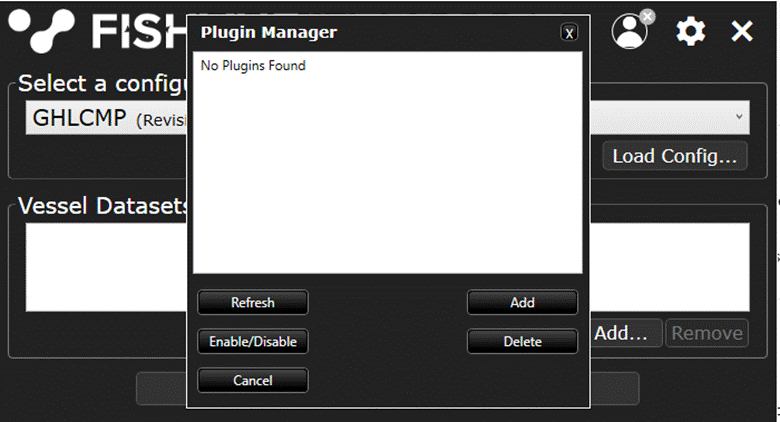
Clicking the Add button lets you choose a ZIP file to install. Interpret will unpack the ZIP and place your plugin’s binary files in the appropriate directory. Once installed, Interpret automatically loads your assembly so it’s available for use in the Main window.
2. Main Menu
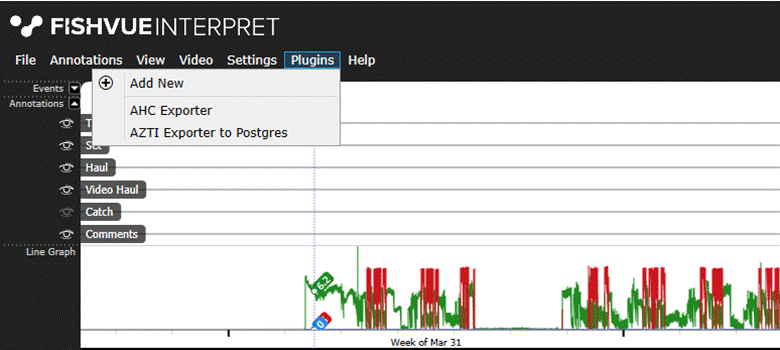
The Plugins option in the Main window’s menu lets you view all installed plugins, run them, and add new ones.
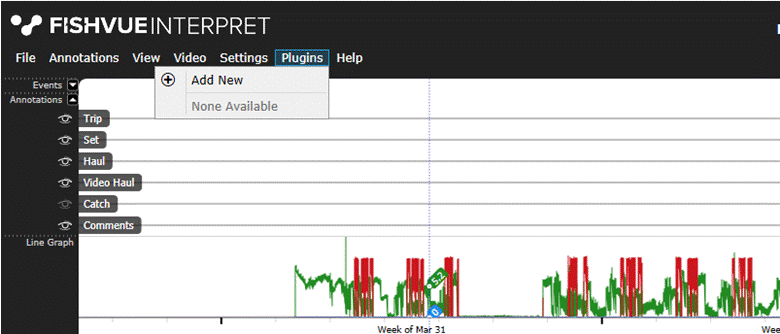
Once installed, your plugin should be visible in the Plugins menu, like this:
Appendix
This is the list of additional materials provided with this manual:
- EMPluginInterface project. It contains the interface structure and plugin implementation examples.
- EMPluginInterface.dll
- Annotations XML example.
- Cruisetrack JSON example.
Was this article helpful?
That’s Great!
Thank you for your feedback
Sorry! We couldn't be helpful
Thank you for your feedback
Feedback sent
We appreciate your effort and will try to fix the article