Video Clipper Guide
Interprets clipper tool allows the user to clip around annotations individually and in batches to create datasets. In order for the clipper to function properly; videos must be loaded, annotations must be present, and enough storage space must be available on the target destination.
Clipping a Single Annotation

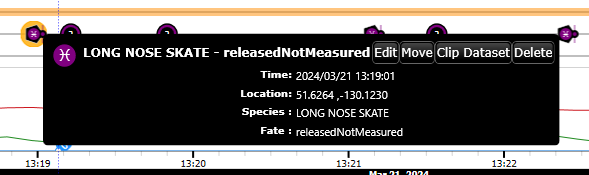 Click on you annotation and click the "Clip Dataset" button. This will bring up the Clip Dataset pop-up for that specific annotation.
Point-in-Time Annotations

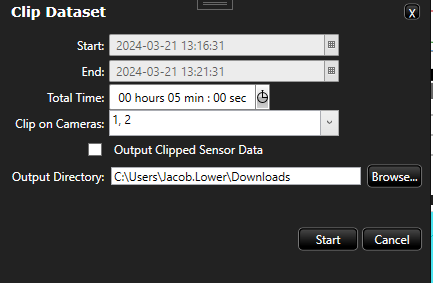 For PIT annotations, such as catch items or any annotation that represents a single instance of time, you will see the start and end time options disabled. The Total Time represents the time added to the front and back of the point. So a 5min buffer would mean 2.5 mins added before and after the point in time annotation.

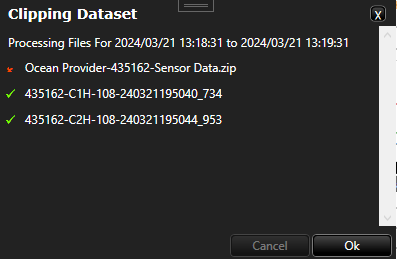 Click start and the clipping with be displayed in this window. Once complete, checkmarks will appear next to the videos and the dataset if that option is selected.
Interval Annotations

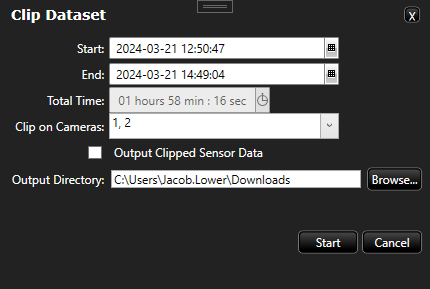 In an interval annotation, such as a videohaul, trip, tow, or set, the total time option is disabled as the start and end time of the clip will span the entirety of the annotation. The output follows much the same as the point in time annotation clip.
Clipping in Batch

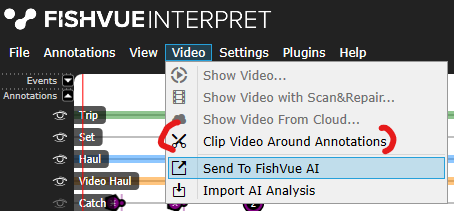 In the top left of Interpret's main view, click on "Video" to access the dropdown menu and click on "Clip Video Around Annotations". This will bring up the Clip Around Annotations pop-up.

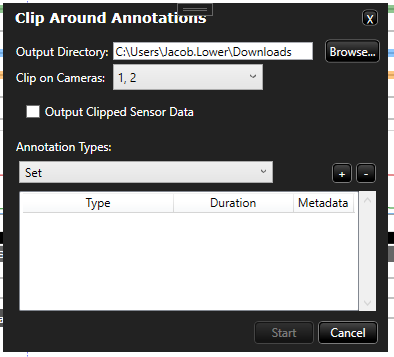 In this pop-up, you can select an annotation type to clip around. Based on your configuration, your annotation types may vary. You can edit the Output Directory here, and choose which cameras you would like to include in the batch clip. It will default to your downloads folder and including all cameras.

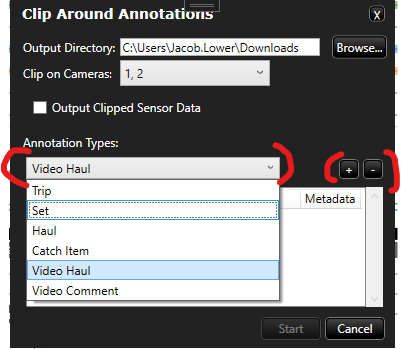 Use the dropdown menu to select one or more annotation types that you would like to clip around. After selecting the annotation type you would like to add, click the "+" or "-" buttons on the menu to add or remove the annotation type from the batch clip.
Once you have selected your annotation types, click the start button to begin the clipping.

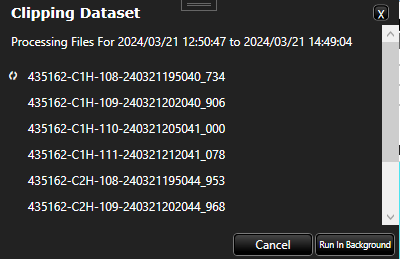 When clipping begins, this menu will pop up. You can opt to run this in the background, which will hide this menu.

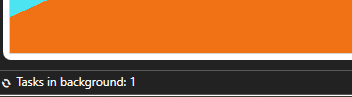 While running in the background, this icon will appear in the bottom left of the main Interpret menu. You can click on this to bring the pop-up back to view.
Once your clips are finished running, you can find them in the folder you chose to be the output folder (Downloads by default).
Outputs
The outputs of clips will be the dataset, if selected, and the video clips. It is a good idea to organize these into folders in a central location marked by their vessel name, date, and tripID. This way, you can easily organize your data and find it for later use. Keeping a consistent style is important as to not lose data down the line.
Was this article helpful?
That’s Great!
Thank you for your feedback
Sorry! We couldn't be helpful
Thank you for your feedback
Feedback sent
We appreciate your effort and will try to fix the article