Observed Problem | Step to Resolve Primary | Step to Resolve Additional |
Tablet Blank/OFF | - Verify tablet is plugged into power at power source and connection to tablet at bottom of tablet is good
- Ensure power source to tablet is ON
| - Verify tablet is ON (press side button).
- Allow tablet to get to minimum charge if drained. Note tablet that is completely drained of battery will show only lightning bolt/plug connector
|
 Tablet Unable to connect Tablet Unable to connect
| - Refresh tablet screen with
 browser refresh or (press home button ) then wait 10 seconds for page to re-load browser refresh or (press home button ) then wait 10 seconds for page to re-load
- Remote Connection Up – see additional steps
- Remote Connection Down - Perform a deep restart of the Vantage unit (press power button, wait until amber Data Recording/Video Recording LEDs turn off (approx. 15 mins)) Press power button and allow system 1.5 mins to boot before trying to connect again.
-
| - Remote Connection Up – attempt to connect to the unit using InControl. If Unable to connect from InControl, restart the SERVER using balina Cloud
- Allow one minute after server restart before attempting tablet reconnection.
- If tablet still will not connect, but other devices can and you have remote connection, ensure the DCHP reservation for the Vantage unit is set.
|
Tablet display sitting at Login screen | - Enter username and password (case sensitive) and tap the NEXT button to login
- Always leave tablet logged intoVantage vessl mode as it will autoload into vessel mode without password when Vantage ocin slected
| - Access system from Technician mode to create new vessel login in vessel has incorrect username of password
|
Camera View - Black or frozen on tablet (no live view) | - Refresh tablet screen with
 browser refresh or (press home button ) then wait 10 seconds for page to re-load browser refresh or (press home button ) then wait 10 seconds for page to re-load
| |
Camera View - big play button (no live view) | - Refresh tablet screen with
 browser refresh or (press home button ) then wait 10 seconds for page to re-load browser refresh or (press home button ) then wait 10 seconds for page to re-load -
| - Ensure camera resolution not exceeding the allowable maximum resolution
|
Camera Views ONE CAMERA says “offline try rebooting your camera”
| - Ensure camera is connected properly
- o Ensure RJ45 port connection inside PoE switch is good/connected.
- o Check port LED light status is good
- o Check for LED lights inside camera on/none
- Press power button to shutdown unit for 1 min, then power back on. Allow 1 minute for cameras to re-establish connection.
- Cycle power to camera (see additional steps 1.2.3 for options to do this)
| - Remote Connection Up – Turn ON Control>Output 1 for 30s, then turn back off. Allow cameras one minute to boot and re-establish connection
- Remote Connection Up – examine Peplink client list to see if camera is greyed out in client list. If it is, reboot the Peplink , or have vessel shutdown with power button for 3 mins to allow modem reset)_
- Replace with backup camera if necessary
|
Camera Views ALL CAMERAs say “offline try rebooting your camera” | - Check48v power and ethernet/uplink to PoE switch good
- Press power button to shutdown unit for 3 mins (to allow modem to shutdown), then power back on. Allow 1 minute for cameras to re-establish connection.
-
| - Remote Connection Up – examine Peplink client list to see if camera is greyed out in client list. If it is, reboot the Peplink
|
Camera View out of focus (Vivotek FD9387-HTV-A) | - log into camera webpage and to go to Configuration>Media>Image>Focus and select fully open iris and full-range scan potions then select auto-focus button
| Remote Connection Up – use InControl and the InTouch dropdown list to select and access the camera webpage go to Configuration>Media>Image>Focus and select fully open iris and full-range scan and select auto-focus button |
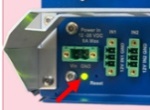 Vantage unit – rear unit power LED not on