If you're experiencing Issues with the Tablet Interface, try the following troubleshooting steps.
If you're experiencing Issues with the Tablet Interface, try the following troubleshooting steps.
Tablet is Blank/Off.
- Verify that the tablet is plugged into power and that the power connection at the bottom of the tablet is secure
- Ensure that the tablet is powered on by holding the power button top right side.
Tablet has “Unable to Establish Connection” message (dark Screen)
- Refresh the page - tap three dots top right of display and tap the refresh icon and wait for the interface to load.
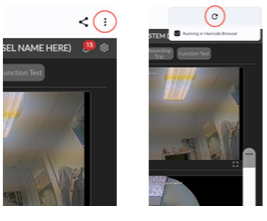
- Tap the X top left of display to close camera view window and verify that the Wi-fi Icon is visible top right of the tablet display.
- If there is no wi-fi icon present, reset wi-fi modem by pressing the power ON/OFF button at front of Vantage unit to turn Vantage off.
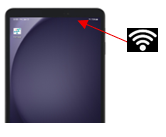
- Wait 3 minutes and press power ON/OFF button at front of Vantage to power unit back on. Wait another 2 minutes for the Vantage to restart then refresh the tablet view (tap three dots top right of display and tap the refresh icon)
- If there is no wi-fi icon present, reset wi-fi modem by pressing the power ON/OFF button at front of Vantage unit to turn Vantage off.
- If the tablet still shows unable to connect message, power the Vantage unit off for 15 minutes and then re-power the unit on after 15 minutes has elapsed Allow 3 minutes for the system to restart, and then refresh your tablet
- If the tablet is still showing the unable to connect message, using a small pin, hold the reset button located below the power connector on the rear of the Vantage unit for 5 seconds to hardware reset the device. Allow 3 minutes for the system to restart following the pin reset, and then refresh your tablet.
- Device. Provide this Device Name to support.
Frozen Camera Views
- Refresh the page by pressing the home button and waiting for the interface to load.
- Confirm that the cameras (particularly Vivotek Cameras) are set to 5FPS and 1920x1080. Higher resolutions can result in frozen images on the tablets.
Black Screen - No logo
- Occasionally, the Vantage tablet will attempt update itself when in network range. This can lead to a grey/black screen being presented within the Kiosk mode. Rebooting the tablet or restarting the Vantage unit will not resolve this.
- To resolve this issue, contact Archipelago Support to get assistance with updating your tablet.
Was this article helpful?
That’s Great!
Thank you for your feedback
Sorry! We couldn't be helpful
Thank you for your feedback
Feedback sent
We appreciate your effort and will try to fix the article