2.3.3 Viewing the Cruise Track Table
The cruise track table provides a complete listing of every record within the available EM data. The cruise track table identifies each record by line number and lists a default selection of data including time, location, speed (knots), drum (rpm), pressure (psi), video on, and voltage. (Note that you can customize the types of data displayed, as described below.)
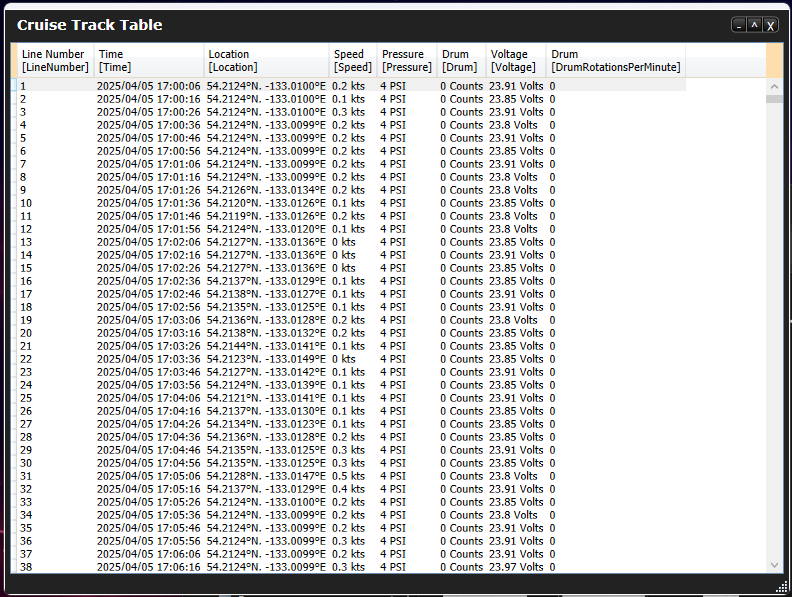
Like other display options within FishVue Interpret, the cruise track table is fully integrated with the other displays, so double-clicking a record in the cruise track table will highlight the corresponding point on the map and the time series.
To view the cruise track table:
- From the View menu, choose Cruise Track Table.
- The cruise track table is displayed.
- Note that the columns displayed represent just a few of the items available. You can customize the information displayed by showing or hiding columns.
To show or hide columns in the Cruise Track Table:
- Right-click on any label in the column header to display a list of column names. Click on any list item to select or deselect that column. (Selected items are identified with a check.)
- You can also change the order in which the columns appear.
To change the column order:
- Click on the column header and drag the column to the desired position.
2.3.4 Viewing the Calendar
Located in the top right corner, the calendar indicates each day in the vessel’s data set. Selecting a day in the calendar displays the corresponding data on the map and in the time series. Using the calendar, you can narrow the range of displayed data to a single day or expand it to include the full cruise track. (By default, the entire cruise track is selected to start). This section describes ways to select and display data using the calendar.
To display a single day:
- Click on the selected day.
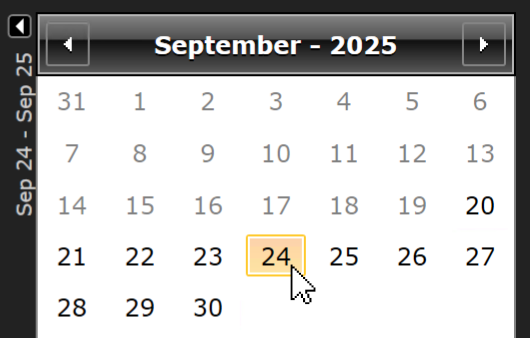
To display the entire cruise track after selecting a single day:
- Holding down the CTRL key, click on the selected day. The selected day is de-selected, and the entire cruise track is displayed.
To display a date range:
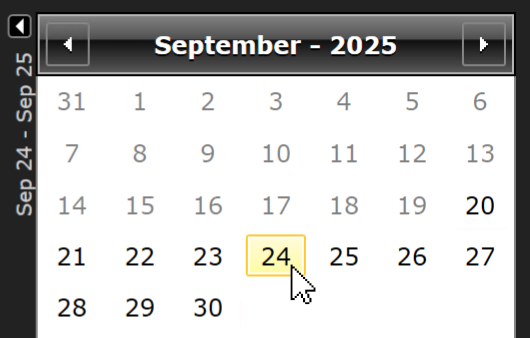
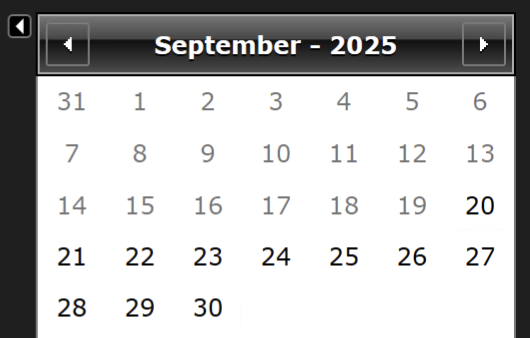
- Click on the first day of the range, hold down the SHIFT key, and then click on the last day of the range; or...
- Click and hold down the left mouse button to highlight the days you want to display.
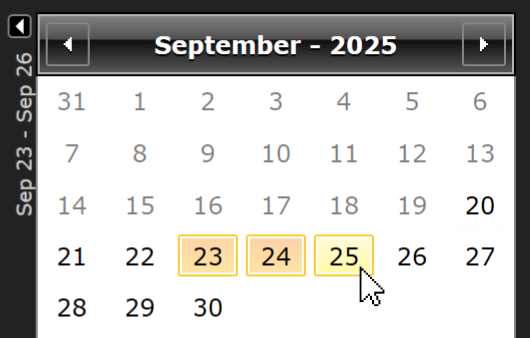
To display a date range:
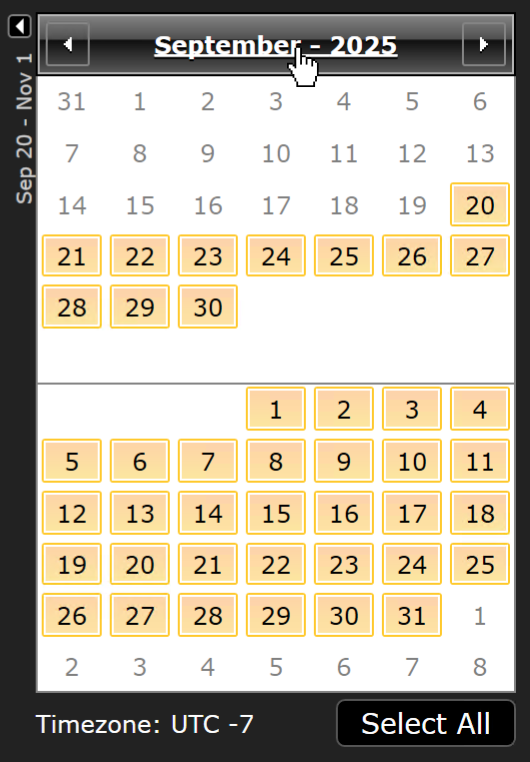
- Click on the date displayed on the calendar header.
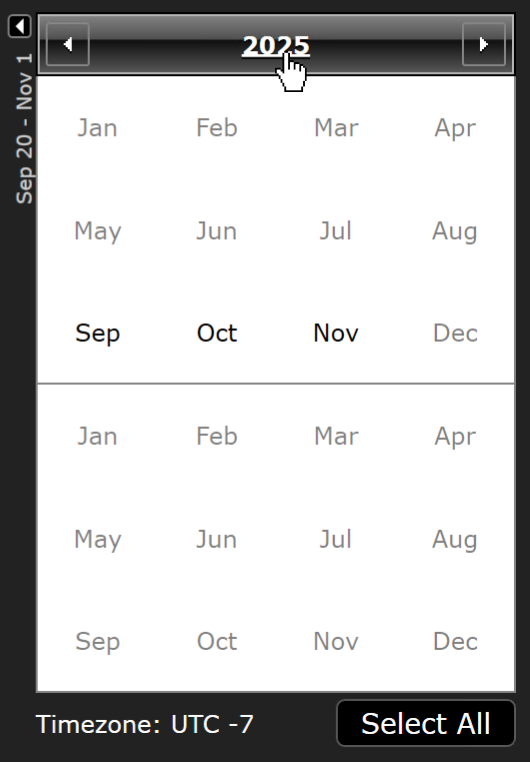
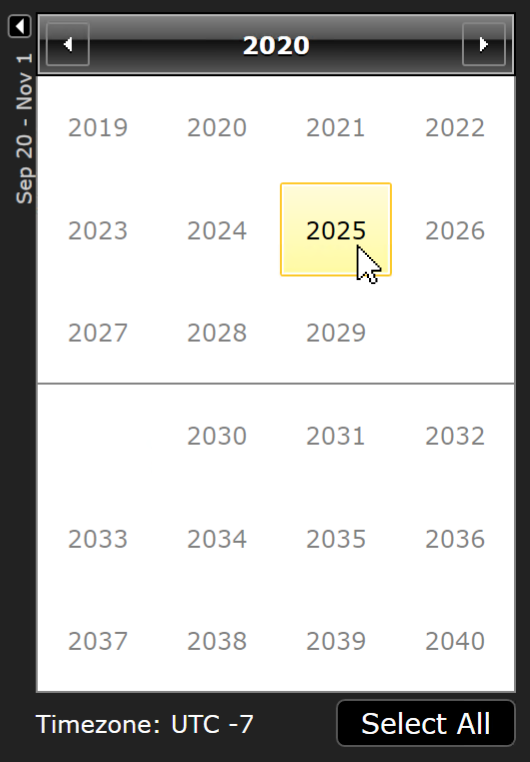
- The calendar will zoom out to display a range of months and years.
- To zoom back in (and reduce the date range), click on the current month/year.
If you want to create more room to display the adjacent time series, you may choose to hide the calendar.
To hide or show the calendar:
- Click the
 or
or button located to the top right of time series.
2.3.5 Changing Time Zones
Although most Archipelago EM systems are configured onboard the vessel to correspond with the regional time zone, if this information isn’t available in the vessel setup data, FishVue Interpret will default to Coordinated Universal Time (UTC) and prompt you to specify the UTC offset you want to use when you load the data. You can also adjust the time zone within FishVue Interpret once data has already been loaded.
To review data records using the local time for a given region, you can convert the UTC time displayed in FishVue Interpret by adding or subtracting the appropriate number of hours; for example, to convert UTC to Atlantic Standard Time you would subtract four hours from UTC (or three hours during Daylight Savings Time). To find the correct offset for your region, refer to a UTC/GMT conversion chart.
To change the displayed time zone:
- From the Settings menu, choose Time Zone. The Local Time Zone box is displayed.
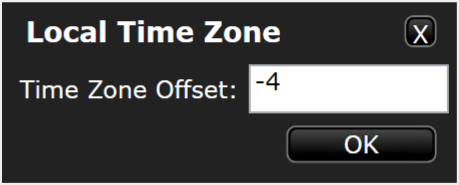
- In the Local Time Offset field, type the number of hours that the desired time zone is ahead (for example, “4”) or behind (for example, “-4”) UTC time. (If you want to just set it to UTC time, type “0”.), and click OK to accept.
 Previous Chapter
Was this article helpful?
That’s Great!
Thank you for your feedback
Sorry! We couldn't be helpful
Thank you for your feedback
Feedback sent
We appreciate your effort and will try to fix the article