2.3.2 Viewing the Map
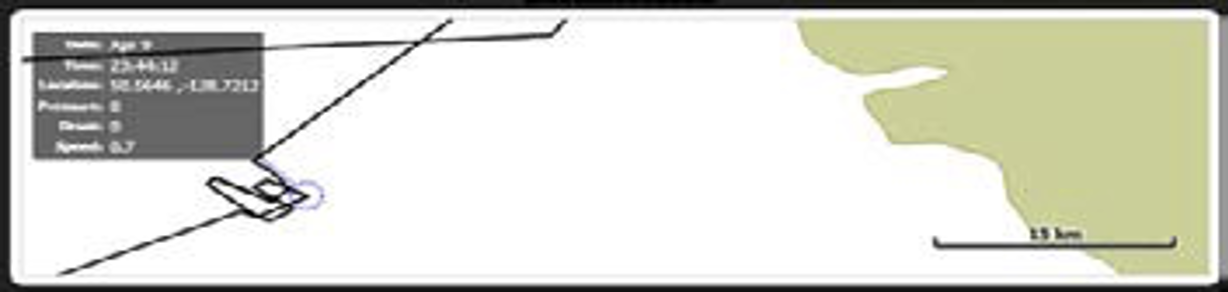
Located along the lower portion of the screen, the map references the vessel’s recorded GPS data to depict its cruise track against a map of the region.
Moving Around the Map
You can move around the map in several ways:
To zoom in or out:
- Roll the mouse wheel to zoom in or out.
- Or rest the mouse pointer over the map, hold down the mouse wheel button, and then drag the mouse to select a range.
To pan around the map:
- Hold the left mouse button and drag the mouse to move the map in any direction.
To display information related to any given point of data:
- Rest the mouse pointer over any data point to view a summary for that point.
To highlight a portion of a time series or map:
- Double-click on any point on the map to highlight both that point and the corresponding point in the time series in red. If there is a video clip associated with that point (and the video display is open), FishVue Interpret will display the appropriate video footage.
To copy information for any data point:
- Right-click on any point on the map and choose “Copy point time and location to clipboard.”
Adjusting the Cruise Track Display
When viewing the map, you can adjust a range of options to suit your preferences and viewing requirements. For example, you can specify the line style of the cruise track (dots or arrows).
To specify a line style for the cruise track:
- From the View menu, choose Cruise Track Style.
- Select “Dots” or “Arrows.”
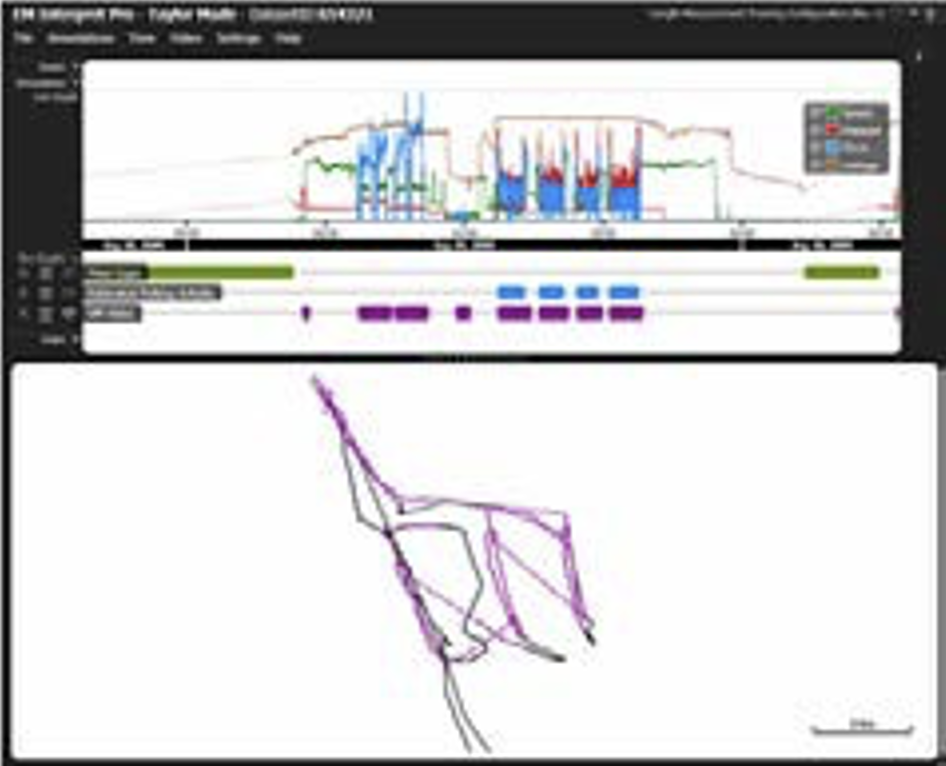 Colour coding can help you to quickly highlight a series of events or a time sequence on the map (for example, to depict periods when video was recorded).
To display a box graph on the cruise track:
- In the Box Graphs area, click the
 button next to the timeline that you want to highlight on the map. (In this example, the VM video box graph.)
The corresponding portion of the cruise track changes colour to match. (Note that highlighting a second item will cancel the first.)
Adjusting the Cruise Track Display
FishVue Interpret uses shape files to define the program’s map display. Each shape file stores key geographic elements such as location, shape, and attributes of geographic features.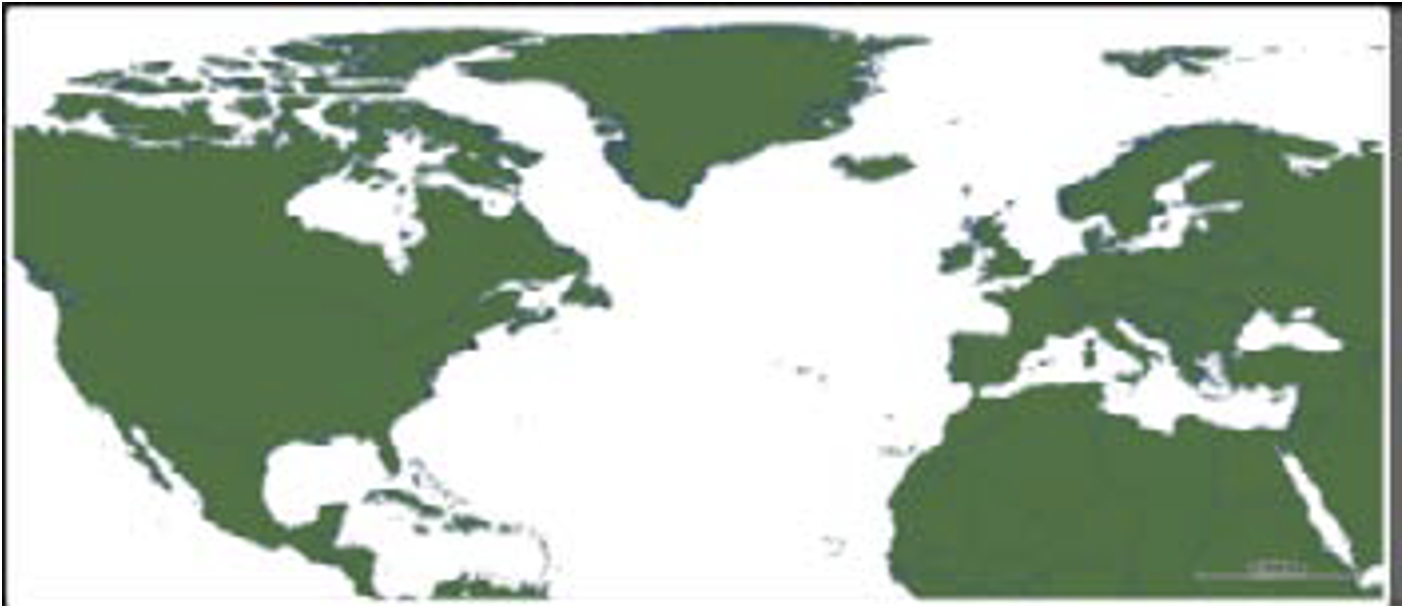
With FishVue Interpret, you can customize the map display in several ways, including adjusting the style of the map (using outline or polygons), customizing the colour and line style used to depict the land masses, adding new shape files, or displaying markers or labels.
To display or hide shape files:
- From the View menu, choose Shape files.
The Shape files box is displayed.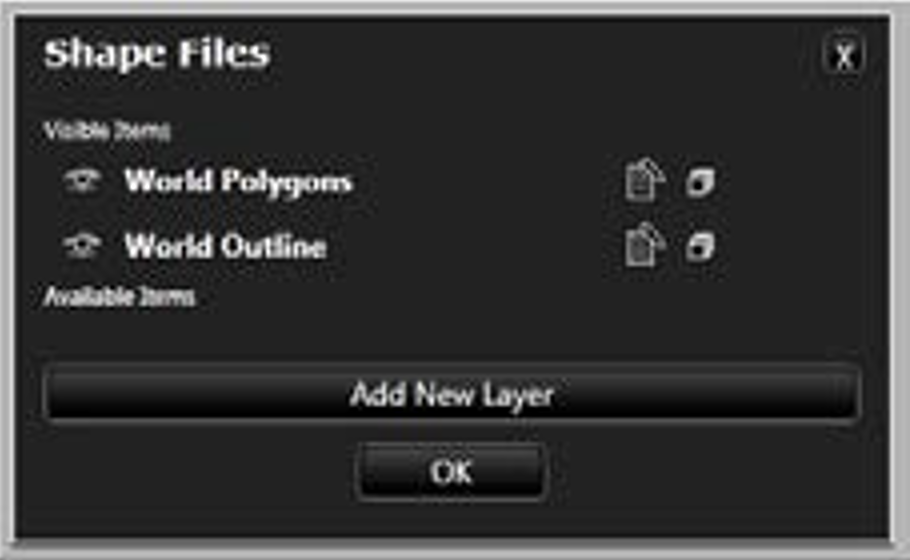
In most configurations, both the World Polygons (solid) and World Outline (line only) will be available and will appear in the Visible Items list. - To remove one of these options, deselect it by clicking the icon. Once deselected, the option moves from Visible Items to Available Items and is no longer displayed on the map.
- To add the shape file back to the Visible Items list, click on the icon. The shape file will now appear on the map.
- Click OK to accept your change.
You can also customize a shape file’s fill colour, opacity, or line style (colour or thickness).
To customize a shape file’s colour, opacity, or line style:
- From the View menu, choose Shape files.
The Shape files box is displayed. - To edit an item, click the button.
Note that if the option to edit the shape file is not available, you can create a copy of the shape file you want to edit by clicking the button next to it. The copy will then appear under the Available Items list with the option to edit. Once you’ve edited the shape file copy, you can move it from the Available Items list to the Visible Items list so it will appear on the map. - Depending on which item is being modified (polygon, outline or points), one of three Edit Layer screens is displayed.
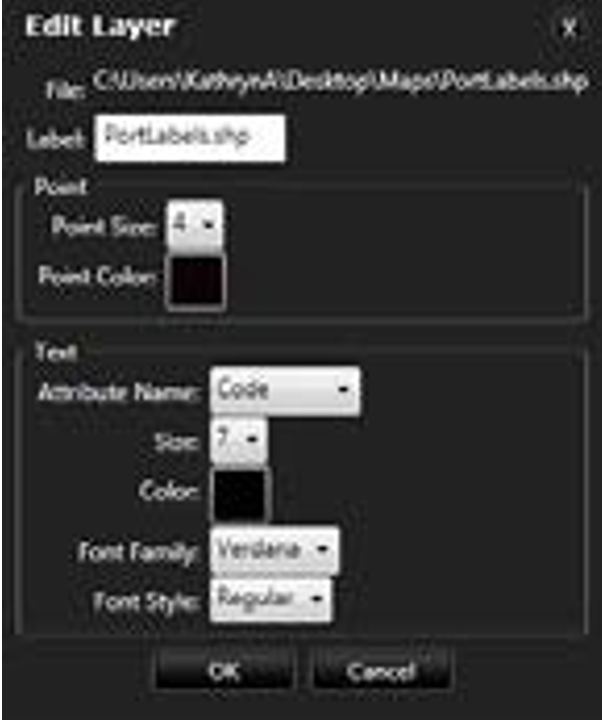
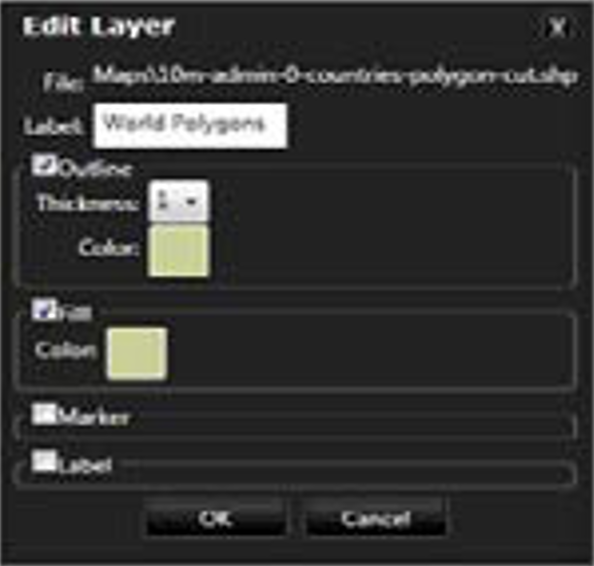
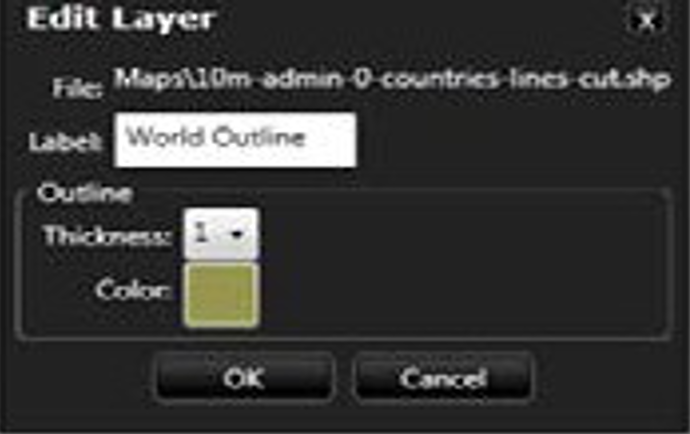
- In the Edit Layer box, you can adjust the line style by selecting the thickness from the dropdown list.
- Click on the Color box to adjust the color or opacity of the outline or fill of the shape file.
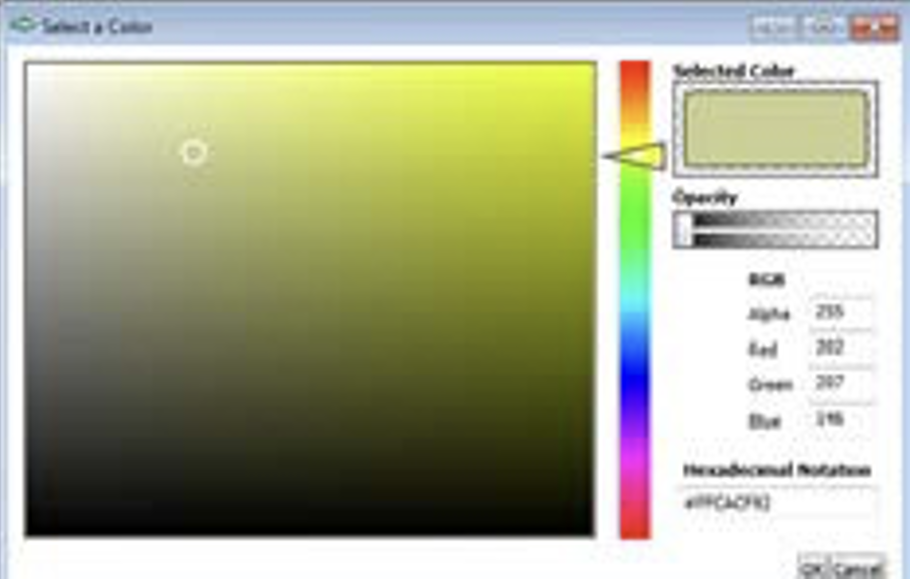
- Click OK to accept the changes.
If you have an existing shape file that you would like to use, you can add it to the available shape files. (Note that the shape file needs to be in the WGS 84 lat/long map projection in order to be loaded into the FishVue Interpret software.)
To add a new shape file:
- From the View menu, choose Shape files. The Shape file box is displayed.
- Click the Add New Layer button to open a box where you can navigate to the .shp file that you would like to use.
- Select the .shp file, and click Open.
- Click on theicon to move the shape file from Available Items to Visible Items (You can customize the shape file before or after you move it to the Visible Items list.)
- Confirm that the shape file is displayed on the map. Note that the order of shape files in the list will affect how the map series appears:
- The lowermost item in the list will be the uppermost layer displayed.
- The uppermost item in the list will be the lowermost layer displayed.
- To re-order your shape file within the Visible Items list, left-click and drag the name of the shape file through the list to the desired position.
- To remove any user-added shape files, click the icon.
- To revert a shape file to its default state, click the icon. (Note that this option is only available for shape files included within the original configuration.)
2.3.2.1.1 Labelling or Adding Marker to Map Polygons
You can display text labels on map polygons or display a simple square marker to high- light key geographic features on the map. This can help reviewers to more easily identify interactions between a fishing vessel and its surroundings (for example, quota management areas or areas closed to fishing) when reviewing vessel activity along the cruise track.
Once set to display, the label or marker will appear at the centroid (middle) of the polygon, and its location will not change, even if you zoom in or out on the map. The following examples show a red polygon with a text label (left) and a simple square marker (right).
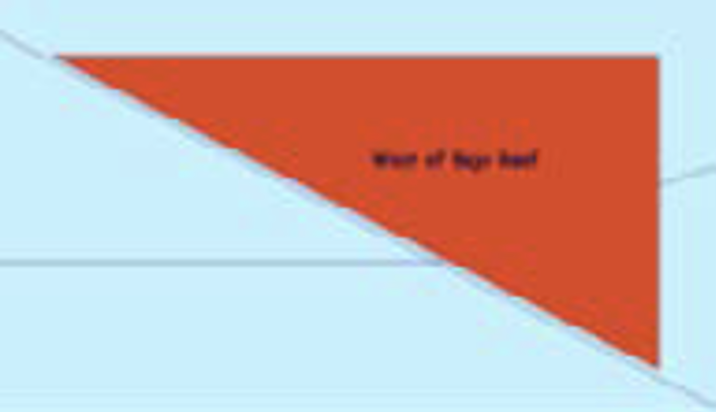
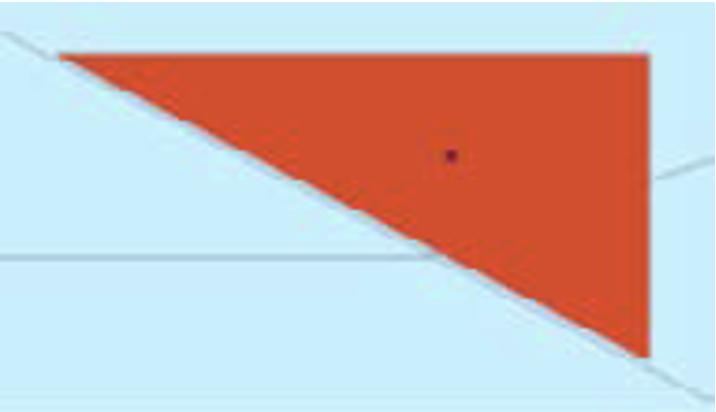
You can display a label or marker, define the size, specify the color, and more with the following procedure.
NOTE: The text of each label is derived from the attribute name chosen. The shapefile (.dbf) should contain a “Name” column with the text label for each polygon. Without this information in the shapefile (.dbf) you will not be able to display polygon labels.
To display a label:
- From the View menu, choose Shape files.
The Shape files box is displayed.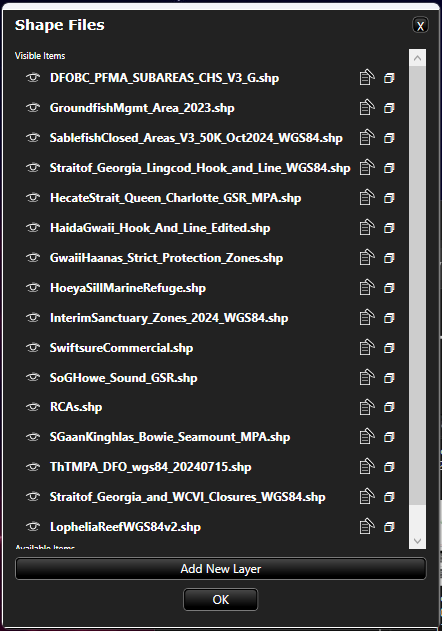
- To select the shapefile to be labelled, click the button next to it.
(If the option to edit the shapefile is not available, you can click the button next to the shapefile to create a copy that you can edit.) The Edit Layer box is displayed.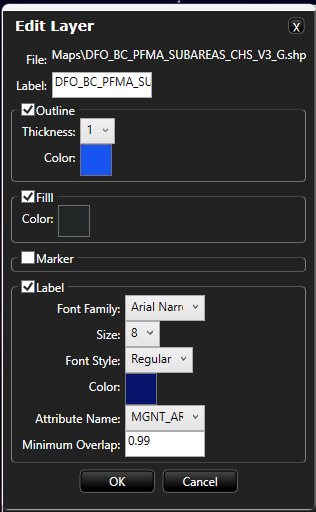
- In the Edit Layer box, select Label to display options to adjust the font size, color, attribute name (contained in the shapefile), and minimum overlap.
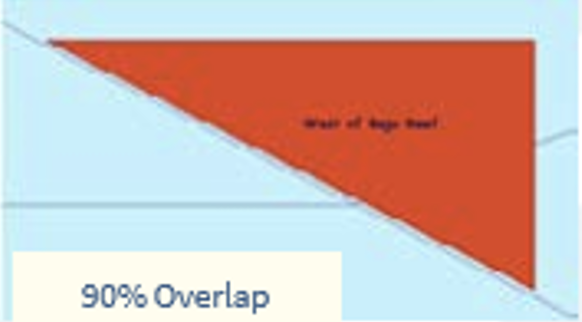
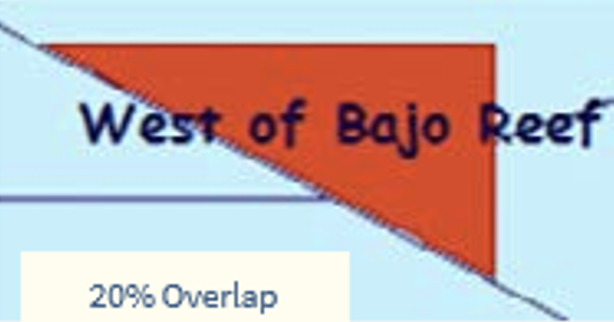
- The minimum overlap is a percent value that determines whether the label will be visible or not. You can start with an overlap of 0.75. A higher minimum overlap value (0.9) would require you to zoom into the labelled area for the label to be visible; this is useful when you are displaying many labels. A low minimum overlap (0.2) means that the labels will be visible when you are zoomed out; this is useful when you are displaying a few labels.
- The minimum overlap is a percent value that determines whether the label will be visible or not. You can start with an overlap of 0.75. A higher minimum overlap value (0.9) would require you to zoom into the labelled area for the label to be visible; this is useful when you are displaying many labels. A low minimum overlap (0.2) means that the labels will be visible when you are zoomed out; this is useful when you are displaying a few labels.
- Click OK to save your changes
- If you have not already moved your shape file from the Available Items section to the Visible Items section, do so now.
To display a marker:
- From the View menu, choose Shape files.
The Shape files box is displayed. - Edit the shape file you wish to add the marker to by clicking on the button. (If the option to edit the shape file is not available, create a copy of the shape file you wish to edit by clicking on the button.)
- The Edit Layer box is displayed.
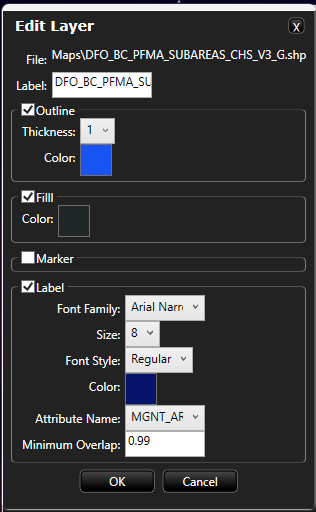
- Select Marker to display options to adjust the marker size or change the color of the marker. Click OK to save your changes.
- If you have not already moved your shape file from the Available Items section to the Visible Items section, do so now.
2.3.2.1.1 Labelling or Adding Marker to Map Polygons
You can display markers and text labels for point shape files, such as port labels. This can help reviewers to more easily identify when trips occur.
You can define the size, specify the color, and more with the following procedure.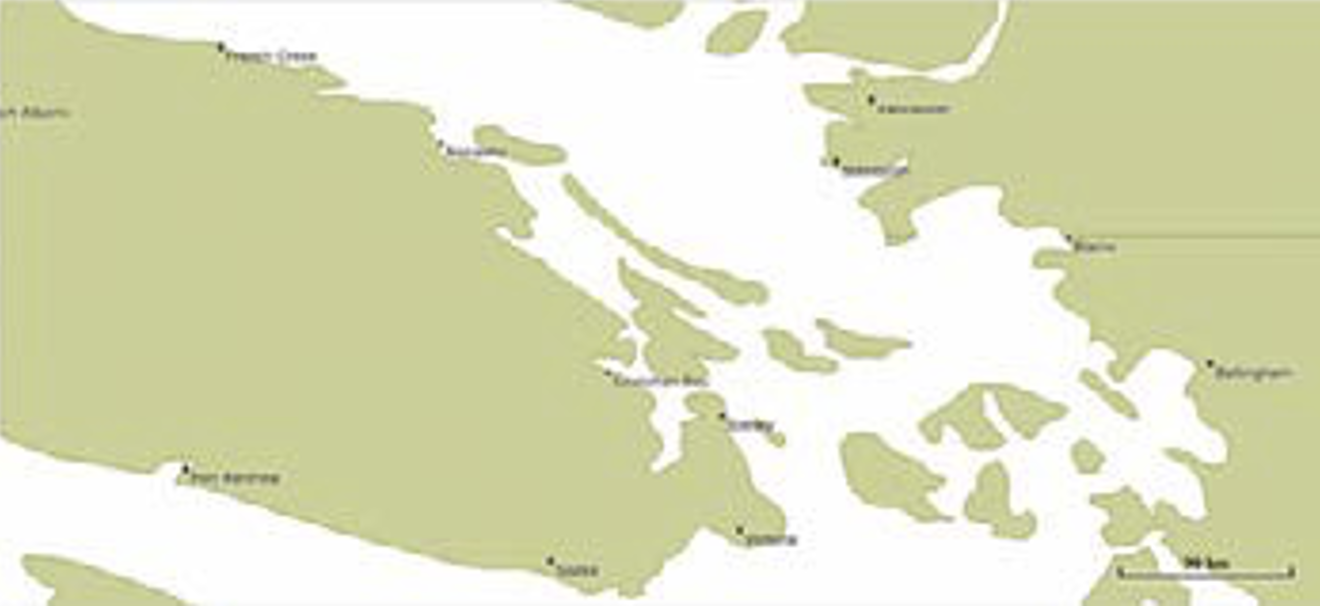
NOTE: The text of each label is derived from the attribute name chosen. The shape file (.dbf) should contain a “Name” column with the text label for each polygon. Without this information in the shape file (.dbf) you will not be able to display polygon labels.
To display a label:
- From the View menu, choose Shape files.
The Shape files box is displayed. - To select the shape file to be labelled, click the button next to it.
(If the option to edit the shape file is not available, you can click the button next to the shape file to create a copy that you can edit.)
The Edit Layer box is displayed.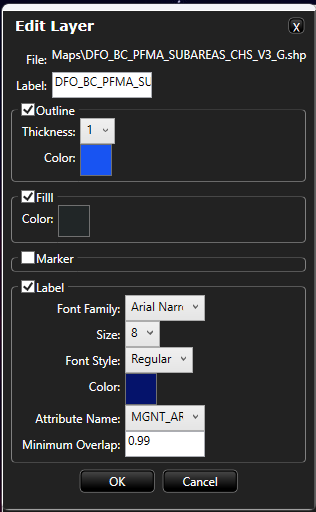
- Specify the point size, point colour, text field, text size, text colour, font and font style in the Edit Layer window. Click OK to save your changes.
- If you have not already moved your shape file from the Available Items section to the Visible Items section, do so now.
 Previous Chapter
Was this article helpful?
That’s Great!
Thank you for your feedback
Sorry! We couldn't be helpful
Thank you for your feedback
Feedback sent
We appreciate your effort and will try to fix the article