2.3 Viewing Sensor Data
As described earlier, FishVue Interpret provides four main ways to view sensor data: the time series, map, cruise track table, and calendar. Each of these is described in the following sections.
These displays are fully integrated. For example, clicking a point on the map highlights the corresponding point in the time series, cruise track table, and video window (if open). This integrated interface makes it easy to move between records, find relevant video or sensor data, and cross-reference multiple activities at once.
(For more on navigating between displays, see the previous section, Using the Interface.)
2.3.1 Viewing the Time Series
Located along the top of the screen, the time series depicts events, line graphs, box graphs, video recording time along a common timeline. (In FishVue Interpret Pro, this timeline will also display a section for annotations.)
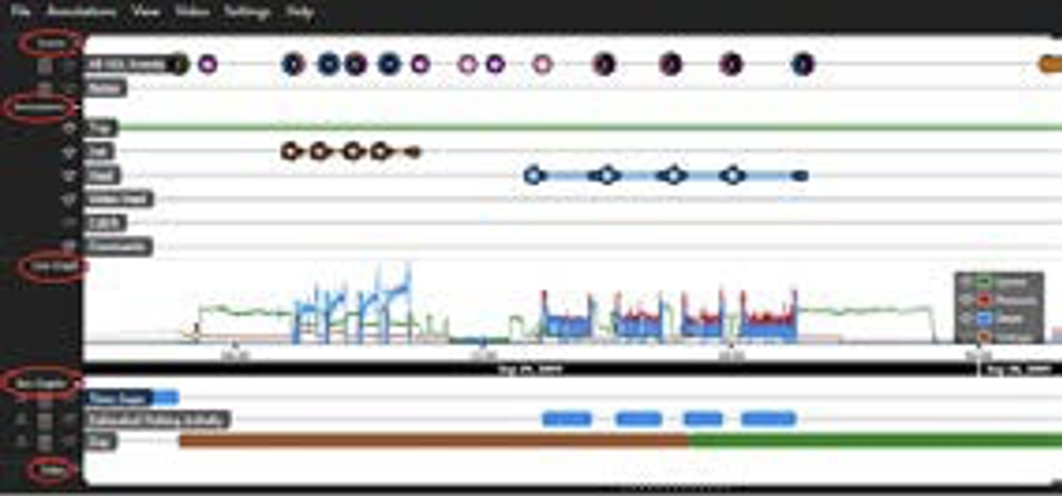
The time series consists of several timelines. Each timeline is identified by a label along the left side, while the date and time are displayed below. Types of data displayed include events, annotations, line graphs, box graphs, and video. Each of these is described further in the following sections.
You can move around the time series in several ways:
To zoom in or out:
- Roll the mouse wheel to zoom in or out.
- Or rest the mouse pointer over the time series, hold down the mouse wheel button, and then drag the mouse left or right to select a range.
To pan around the time series:
- Hold the left mouse button and drag the mouse left or right to move the time series for- ward or backward.
To display information related to any given point of data:
- Rest the mouse pointer over any data point to view a summary for that point.
To highlight a portion of time series:
- Double-click on any point on the map to highlight both that point and the corresponding point in the map in red. If there is a video clip associated with that point (and the video display is open), FishVue Interpret will display the appropriate video footage.
To copy information for any data point:
- Right-click on any point on the map and choose “Copy point time and location to clipboard.”
Events
- To view the event types along the time series, click the
 button next to Events. Each event type listed will display icons along the timeline.
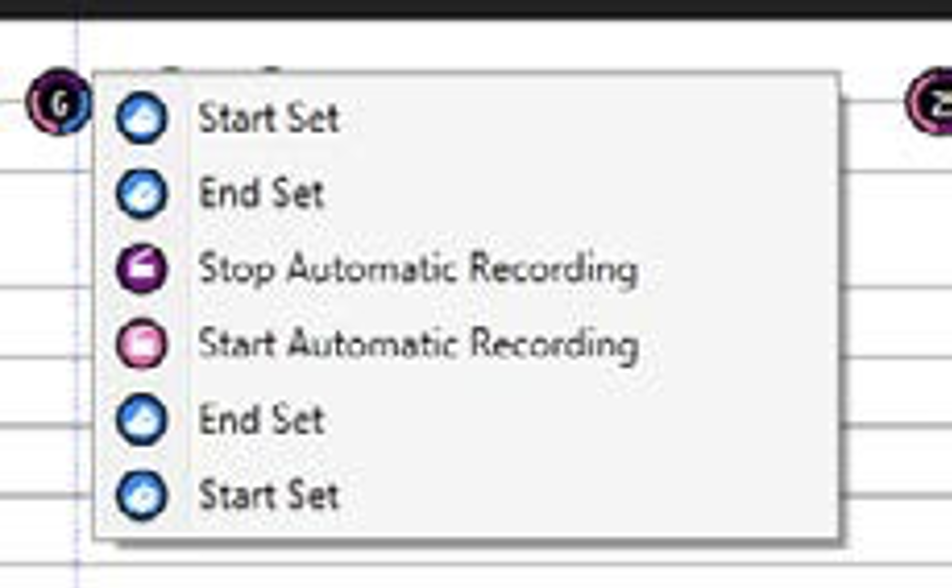
 - A number indicating how many events are available for viewing will appear inside the icon when multiple events occur close together within a time series.
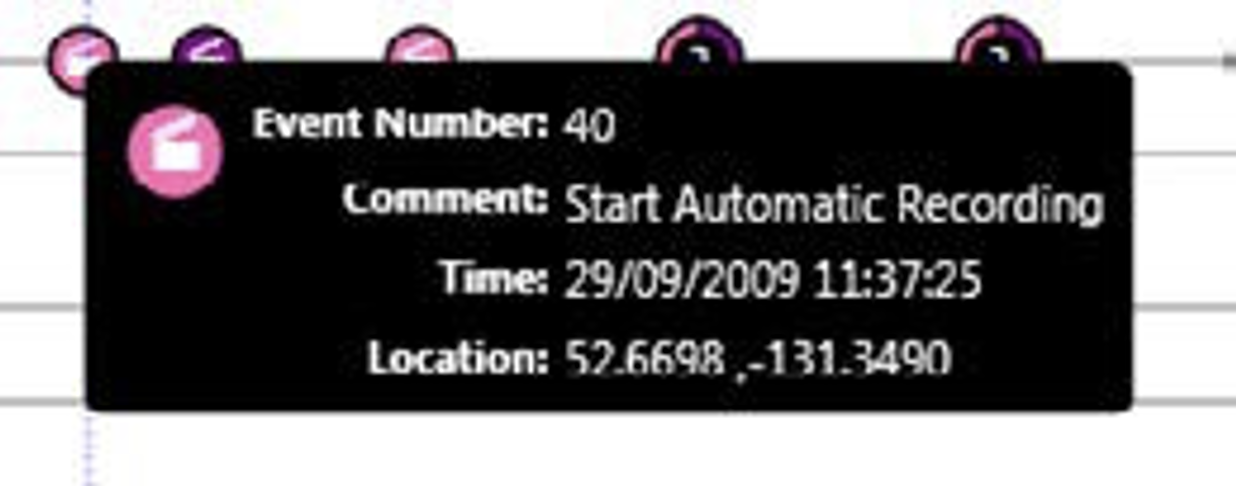
- To view more information about a given event along the timeline, click on the event. An event window will open. When events are grouped together, clicking on the icon will open a list of the grouped events; select any event to open the event window and display additional information.
- To display a list of all events under a specific type, click the
 button next to the event type category. The window (for example, the Important Events window) is displayed. Here you can view a list of all related events in the entire dataset.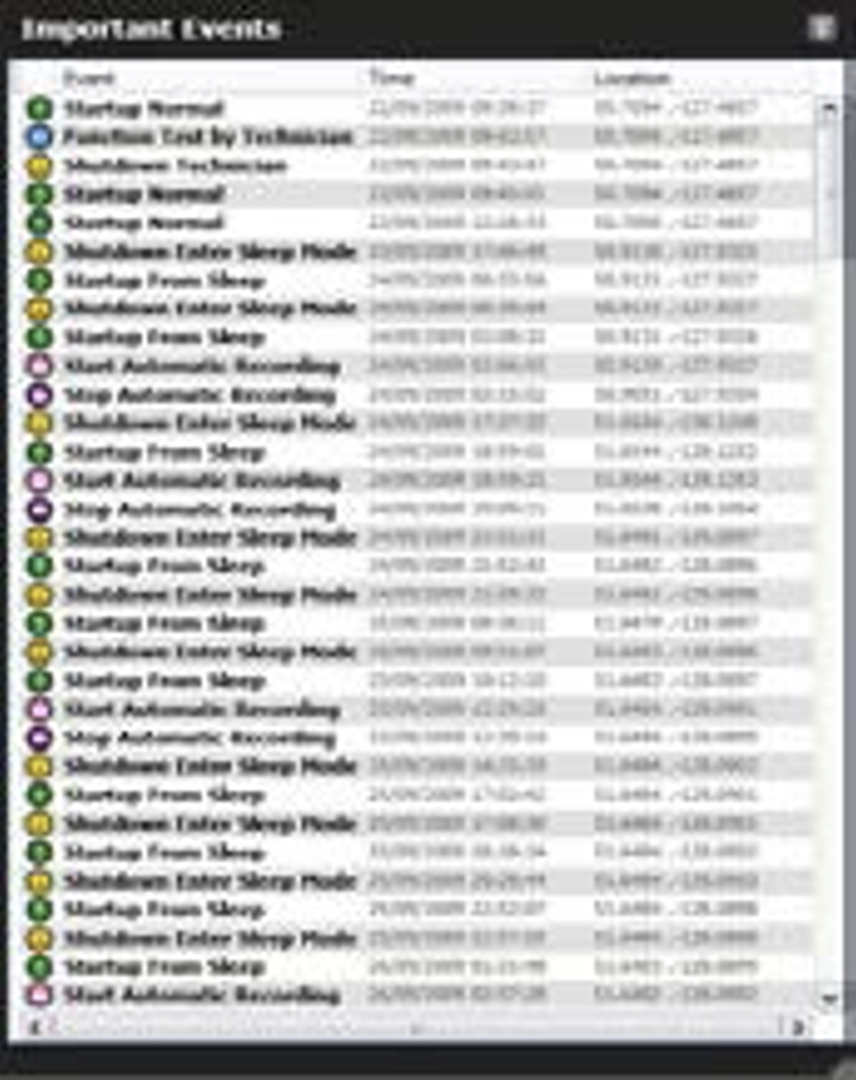
- Once you have finished reviewing the open window (for example the Important Events window above), click the X button in the top right corner to close the window.
- To display the events on the corresponding map, click the
 button next to each event type.
There are two ways to view a group of events.
To display or hide event types:
- From the View menu, choose Event Types.
The Event Types window is displayed. Below are the default event types for this FishVue Interpret configuration. Customized event types will also be listed here.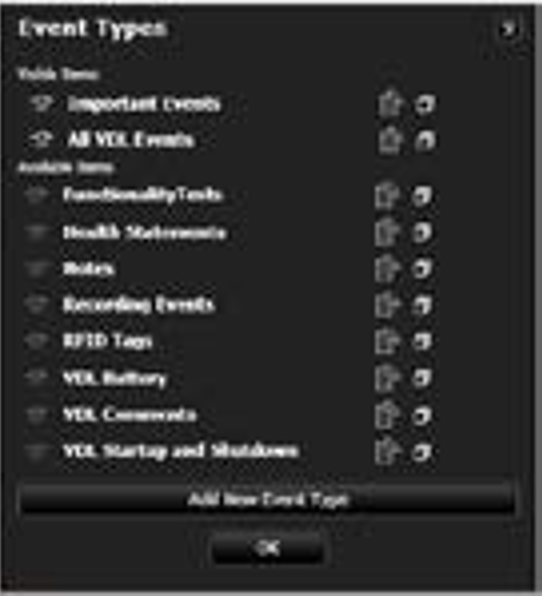
The Event Types window sorts items into two groups: visible items and available items. - To hide an event type, click the
 button next to it. This will move it from the Visible Items list to the Available Items list. Click on any available items to display them again.
You can also customize existing event types or create new event types. FishVue Interpret enables you to define the label text, change the type of event, or define a filter to test data for inclusion or exclusion based on criteria that you specify. This can help you to monitor a given activity at a glance.
To edit or create an event type:
- On the Event Types window (displayed above), click the button next to the event that you want to edit.
- To create a new event type, click Add New Event Type. “New Event Type” will be listed in the available items. Click the Edit button to open the Event Type box.
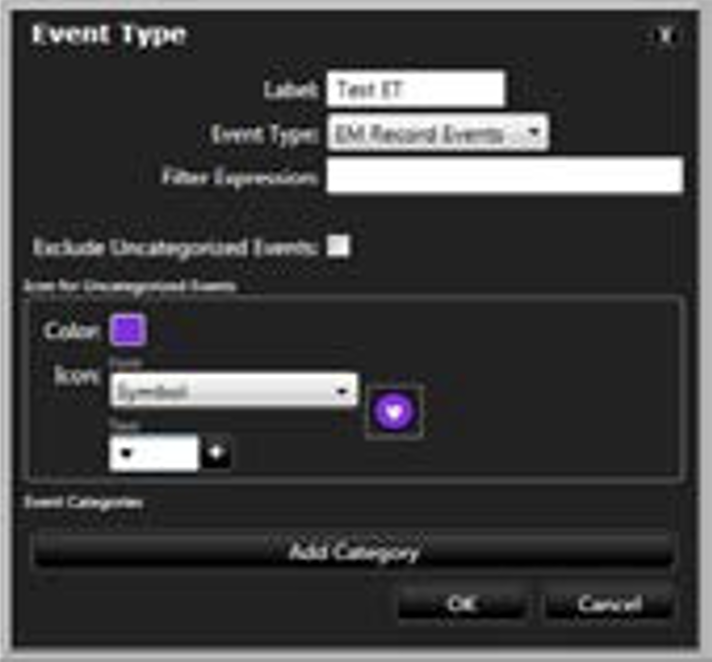
Here you can edit the following options:- Label: provide a name for the event as it will be displayed
- Event Type: define the type of event (for example EM Record events, functionality tests, etc.)
- Filter Expression: define a filter to test data for inclusion or exclusion based on criteria that you specify here (for example, EventNumber=31). A list of possible event numbers is provided in Appendix A.
- If you want to add a category, click the Add Category button to display the Event Categories section where you can define the characteristics. Here you can define the color, icon font, and text for the new category, and in the Categorization Expression field, you can define the criteria by which events will be included within the new category; for example, EventNumber=49.
- You can also choose to exclude uncategorized events; with this option selected only events that are categorized will be displayed in the timeline.
- If the Exclude Uncategorized Events box is not selected, then you can use the Icon for Uncategorized Events area to define the color, font, and text symbols that will represent that event in the timeline.
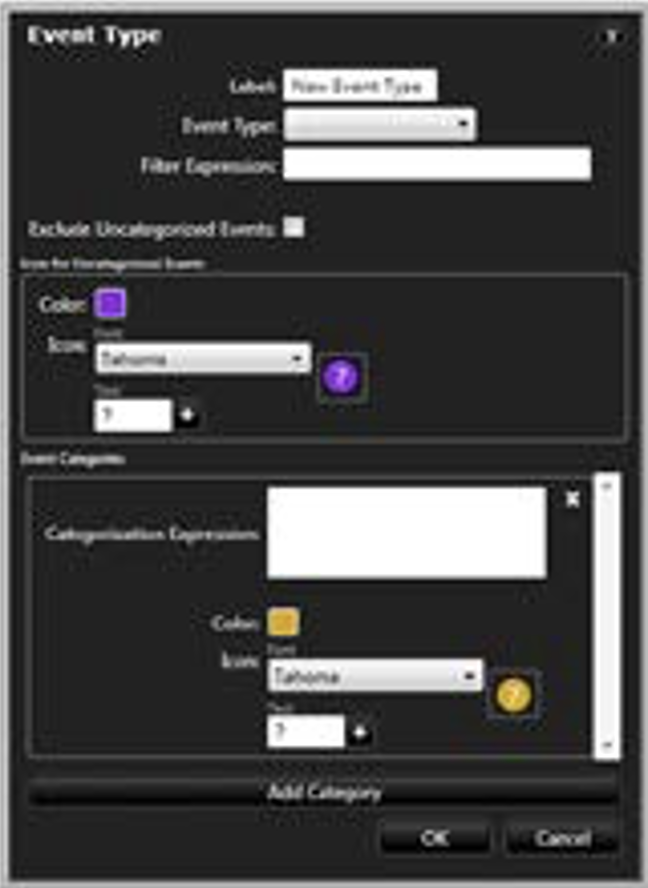
- Click OK to accept your changes and continue.
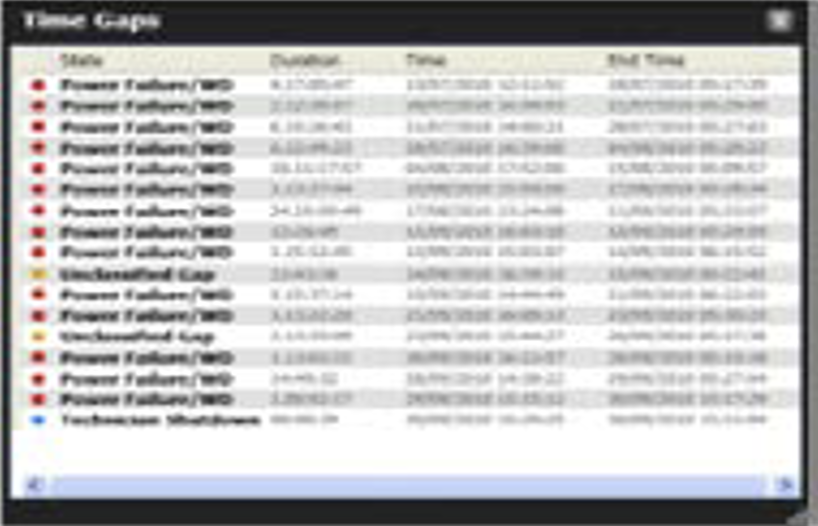
- Below is an example of a newly created event type, time gaps, and the list of all related events in the dataset as defined by the expressions.
Annotations (FishVue Interpret Pro Only)
An annotation is a supplemental notation or reference point that you can create to mark important events, periods of time, group other annotations or add supplemental information. FishVue Interpret Pro uses four types of annotations: point annotations, interval annotations, group annotations, and item annotations:
- Point annotations (such as comments or catch annotations) are attached to a specific date/time and location.
- Interval annotations (such as trip, set or haul,) are attached to an interval of time, and are defined by a start and end point.
- Group annotations (such as fishing activity) are used to group annotations together.
- Item annotations (such as sensor performance) are used to record additional observations outside of the data.
FishVue Interpret displays point and interval annotations as a series of timelines, using a separate timeline for each annotation type or category (for example, all trip annotations on one line, all set annotations on another line, etc.).
Annotations can be set to visible or not visible on the map. To hide an annotation on the map, click thebutton next to it. Clickagain to restore it to the map. 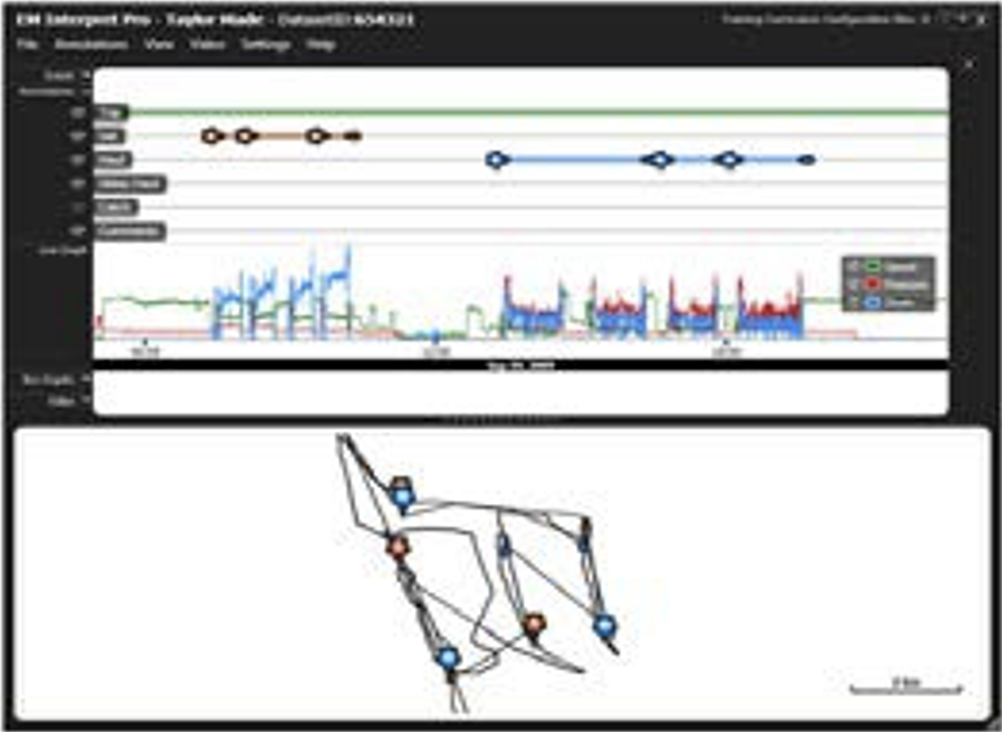
You can view the details of an annotation by clicking on its start point or end point icon.
Annotations can only be created in FishVue Interpret and are saved in a separate file (.Interpret). If no annotations are displayed in the time series, there may not be annotations created for the data set, or they may not have been loaded yet. If you have an annotation (.Interpret) file available, you can open the file in FishVue Interpret.
For information related to creating, saving, and loading annotations, see Chapter 3, “Working with Annotations.”
Line Graph
The line graph indicates vessel speed and displays data from any other sensors installed on the vessel. Common sensors installed include hydraulic pressure, drum rotation, and voltage throughout the dataset.
You can edit a line graph or create a new one; for example, to display data from an extra sensor. To view the sensors installed for the data set:
- From the View menu, choose Sensors.
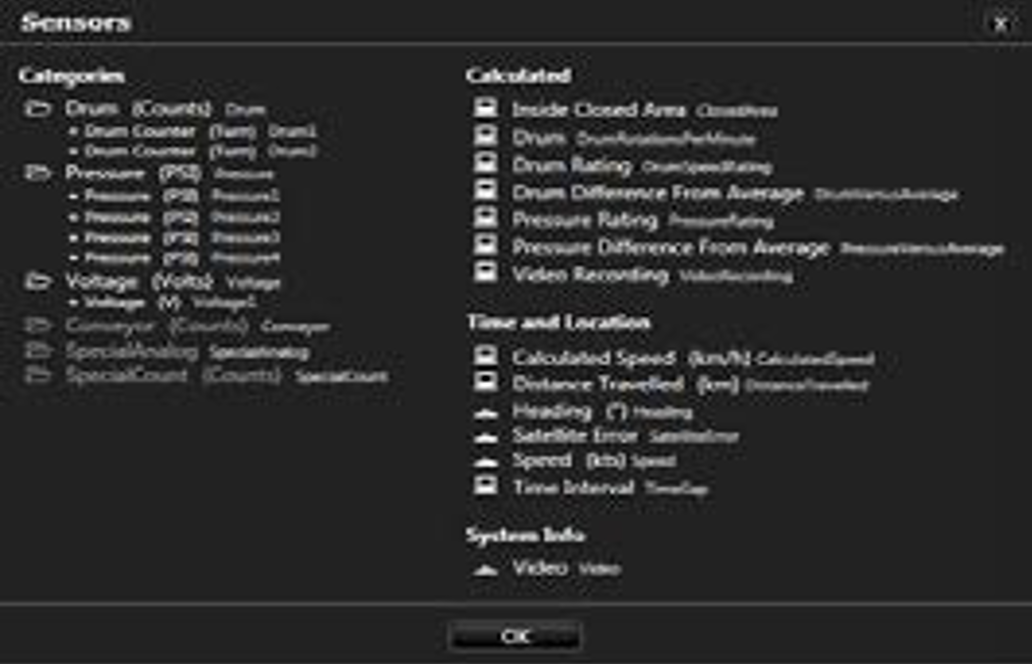
All sensors installed on the trip are listed under categories. The darker grey label to the right of each sensor listed in this window is the key that can be used to write expressions for line graphs and box graphs. The folder symbol represents a grouping of sensors; for example, “Drum” includes all drum sensors installed on the vessel. The asterisk indicates an individual sensor. The computer symbol indicates a reading calculated from sensor readings. The vessel symbol indicates a reading taken from the vessel itself. - Click OK to close the window.
Tip: Leave this window open as a quick reference when writing line and box graph expressions.
To display, hide or create a line graph:
- From the View menu, choose Line Graphs.
The Line Graphs box sorts items into two groups: visible items and available items. - To hide a visible item, click the button next to it. This will move it from the Visible Items list to the Available Items list. You can also click on any available items to display them again.
- If you want to create a new line graph, click the Add New Line Graph button. A new line graph will appear under Available Items. You can now click the Edit button next to the item to specify a label, colour, expression (to plot a single variable), and clip percentile for the new line graph. (The “clip percentile” enables you to compensate for occasional anomalous readings; for example, setting “clip percentile” for 99.9% would enable you to acknowledge a few outlying spikes (0.1%) without skewing the graph). You can graph individual sensors or categories of sensors.
- Click OK to return to the main screen.
NOTE: For a complete list of available expressions, see Appendix A at the end of this guide.
Box Graphs
You can use a box graph to quickly spot time intervals when the EM data met specific conditions. The Box Graph section displays each category or state on its own timeline (and all of the boxes in a state take on the colour and label specified for that state). (For more on this, see Chapter 4, “Working with Box Graphs.”)
A box graph can help to interpret data sets by showing when a variable or a combination of variables meets specified criteria (for example, the day of the week, or the time interval during which pressure exceeded a specified value).
To view a box graph:
- On the time series, click thebutton beside the Box Graph label to ensure the timelines are displayed. Any data will be displayed as a single-coloured box along a timeline.
- Rest the mouse pointer over any box to display more information.
- To expand the timeline, use the mouse wheel to zoom in or out.
- To move back and forth, click on the time series and drag right or left.
You can choose what types of box graph data you want to display or hide in the time series or create a new box graph timeline. To display, hide or create a box graph timeline:
- From the View menu, choose Box Graphs.
The Box Graphs box is displayed.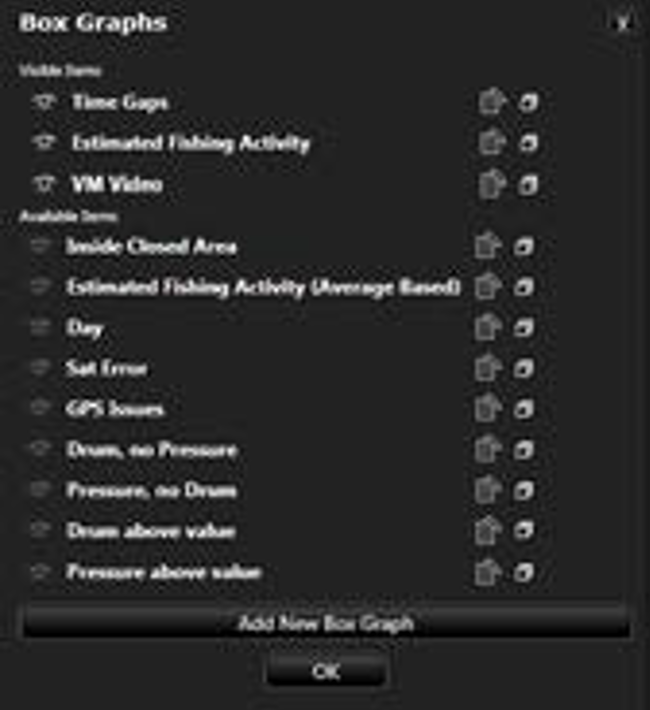
The Box Graphs box sorts items into two groups: visible items and available items. - To hide an event type, click thebutton next to it. This will move it from the Visible Items list to the Available Items list. You can also click on any available items to display them again.
- If you want to create a new box graph, click the Add New Box Graph button. A new box graph will appear under Available Items. You can now click the Edit button next to the item to specify a label and state conditions for the new box graph. (For more on this, see Chapter 4, “Working with Fishvue Interpret.”)
- Click OK to return to the main screen.
Video
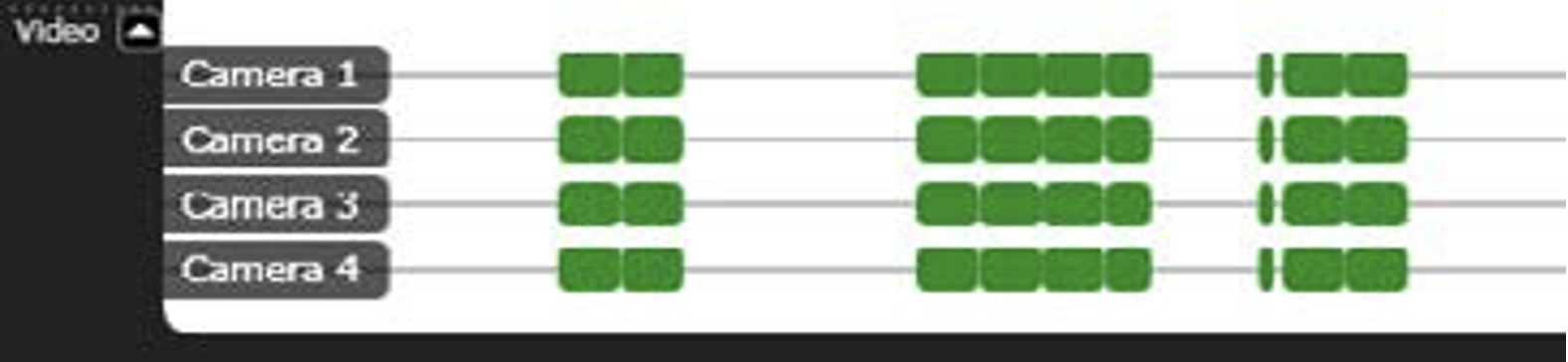
If video footage was recorded by the EM system, it will be represented in the box graph section beside the Video label. Each camera will be represented on its own timeline. In some cases, the EM video box graphs may not be available until the video files have been loaded. For more on this, see “Viewing Video Data” later in this chapter.
 Previous Chapter
Was this article helpful?
That’s Great!
Thank you for your feedback
Sorry! We couldn't be helpful
Thank you for your feedback
Feedback sent
We appreciate your effort and will try to fix the article